The Customer Portal allows you to view all your pending and paid invoices at one single place. To access, navigate to Invoice & Payments > View Invoices. The View Invoices module provides you with a list of invoices that are applicable to you.
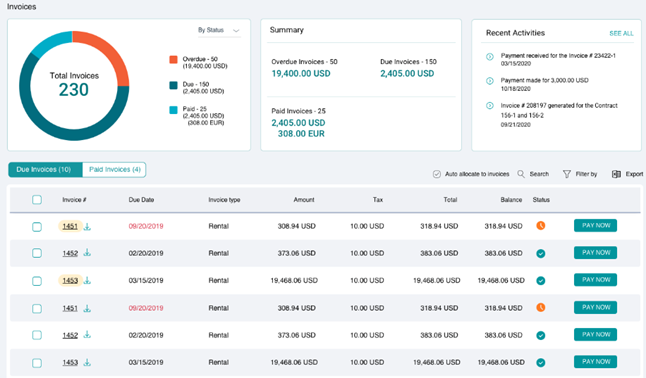
The Dashboard provides you a quick summary of your invoices in the following manner:
- Overview: Provides you with a count of invoices against the respective status – Overdue, Due, and Paid.
- Summary: Displays a cumulative amount of the invoices for each of the status.
- Recent Activities: Lists all recent payments made or received against invoices, displayed along with the corresponding contract number.
Using the tabs, you can choose to only view invoices that are due for payment, view invoices that have already been paid for, or view credit invoices for amounts payable by your Lessor.
For each listed invoice, you can view the following set of information:
| Invoice # | Unique identifier of the invoice. |
| Due Date | Date at which payment is sue for the invoice. |
| Invoice Type | Type of the invoice. |
| Amount | Amount payable/receivable for the invoice. |
| Tax | Total tax applicable for the invoice. |
| Total | Total amount payable/receivable for the invoice including taxes. |
| Balance | Balance amount, if any. |
| Status | Status of the invoice – Pending or Paid |
Searching and Filtering
NOTE: You can use the Search or Filter By option to look for specific invoices applicable to you.
You can click the icon corresponding to an Invoice # to download an invoice individually or select multiple invoices and use the Export option to download multiple invoices.
Paying an Invoices
In addition to viewing and downloading invoices, you can use the View Invoices module to even make payments against pending invoices. Recording a payment against an invoice can be done in any one of the following ways:
- Individually, by clicking the PAY NOW button for the required invoice.
- In bulk, by selecting multiple invoices and clicking the PAY NOW button at the bottom.
- Entering the amount to be paid and using the Auto allocate to invoices option to automatically assign the amount to pending invoices based on the due date.
Pay Now option not visible?
Based on the organizational settings configured by your Lessor, you may not see the Pay Now button, in which case you can only use the Auto Allocate to Invoices option to proceed.
Using either of the above methods, you will proceed to the Review and Pay screen as follows:
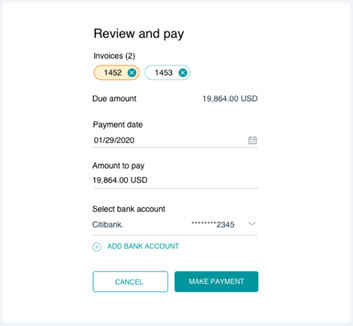
Under the Invoices header, you can view the selected invoices for which you are to make payment, along with the Due Amount.
- Select the Payment Date that should be noted for the payment along with the payable Amount.
- Next, select the applicable Bank Account for the payment. You can also choose the ADD BANK ACCOUNT option to create a new bank account and associate to this payment.
- With all details filled, click the MAKE PAYMENT button to save the payment details.
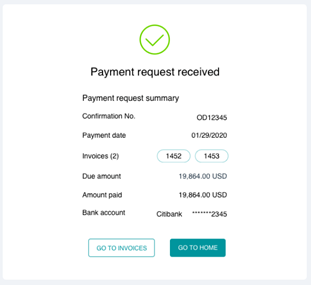
On successful completion, you will receive a Payment Request Received confirmation as follows: