Viewing Invoices
Who is this applicable to? Portal Administrator, Portal User, Super User
The Customer Portal allows you to view all your pending and paid invoices in one single place. To access, navigate to Invoice & Payments > Invoices from the main menu header. This opens the Invoices tab that provides you with a list of invoices that are applicable to you.
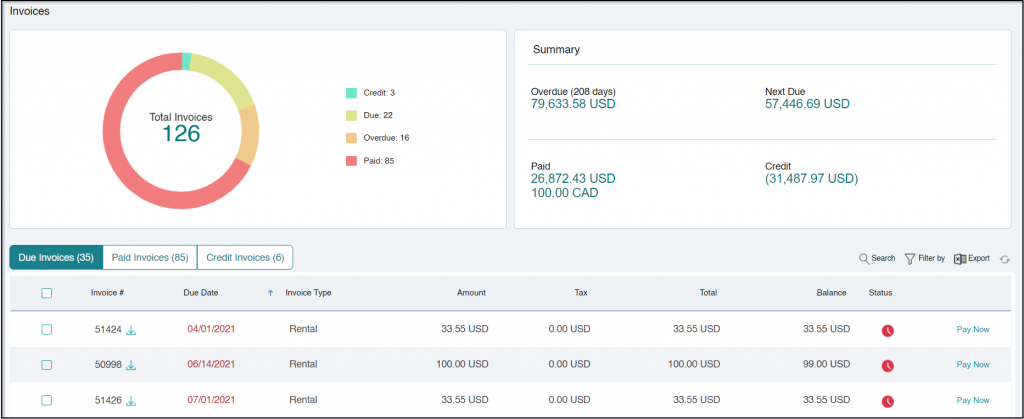
The Dashboard provides you a quick summary of your invoices in the following manner:
- Overview: Provides you with a count of invoices against the respective status – Credit, Due, Overdue, and Paid.
- Summary: Displays a cumulative amount of the invoices for each of the status.
Using the  tabs, you can choose to only view invoices that are due for payment, or invoices that have already been paid, or invoices with credit balances only.
For each listed invoice, you can view the following information:
| Invoice # | Unique identifier of the invoice. |
| Due Date | The date on which payment is due for the invoice. |
| Invoice Type | Type of the invoice. |
| Amount | Amount payable/receivable for the invoice. |
| Tax | Total tax applicable for the invoice. |
| Total | Total amount payable/receivable for the invoice including taxes. |
| Balance | Balance amount, if any. |
| Status | Status of the invoice – Pending or Paid. |
You can click the  icon corresponding to an Invoice # to download an invoice individually or select multiple invoices and use the Export option to download multiple invoices.