Requesting a Payoff Quote
Who is this applicable to? Portal Administrator, Portal User, Super User
Every approved lease in the system must, eventually, be terminated; this termination process is handled through the Payoff module. While a majority of the terminations happen on or after maturity, it is also possible to process the termination of a lease before it reaches its full term.
You may choose to return the assets in your possession and initiate a Payoff request on your own. To facilitate this, the Customer Portal allows you to create a Payoff request. You can do this via any one of the following ways:
You can use the Quick Actions menu from the top right corner to navigate directly to create a Payoff Quote.
- Click Quick Actions > Request Payoff Quote.
- In the Payoff Request page that opens, select the Contract for which you want to create a Payoff Quote and click
 on the bottom right.
- From the main menu header, navigate to Contracts > Payoff Quotes and click
 from the bottom of the screen.
 - In the Payoff Request page that opens, select the Contract for which you want to create a Payoff Quote and click on the bottom right.
- From the main menu header, navigate to Contracts > Contracts.
- Click
 corresponding to the contract for which you want to create a Payoff Quote, and select Contract Details.
 - In the Contract Details window that opens on the right, click
- In the Payoff Quotes page that opens, you can view all the previously created quotes and/or click
- The Payoff Request page that opens will already have the Contract # selected. You can choose to continue with the same contract, or select a different one and click on the bottom right.
Depending on whether you want to create a payoff quote for a lease or paydown quote for a loan, select any one of the following:
Following either of the above methods, once you reach the Payoff Request page, you can view all the selected contract’s details under the Contract Summary section.
- You can either choose the Payment # or select the Payoff at Inception checkbox to payoff at inception.
- Select the Assets for which you want to create the payoff quote. You can also use the Select all option if you want to select all the available assets.
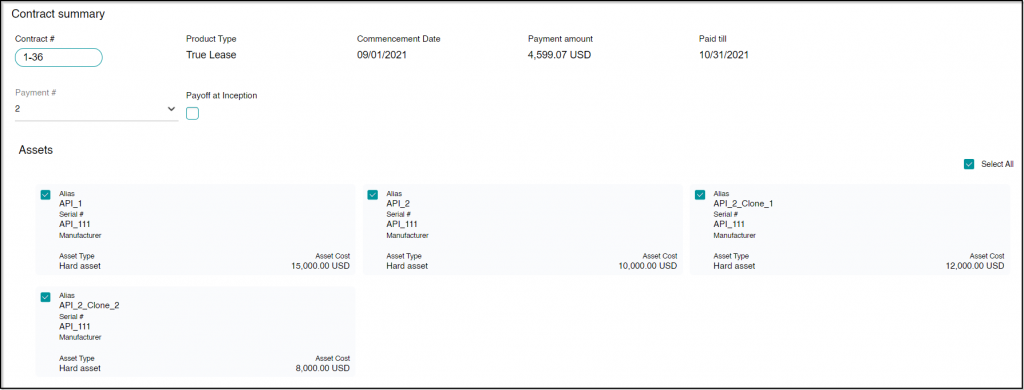
- With all details filled in, click on the bottom right corner.
- Under Payoff Request Summary, review the payoff details entered.
- From the dropdown list, select the Payoff type.
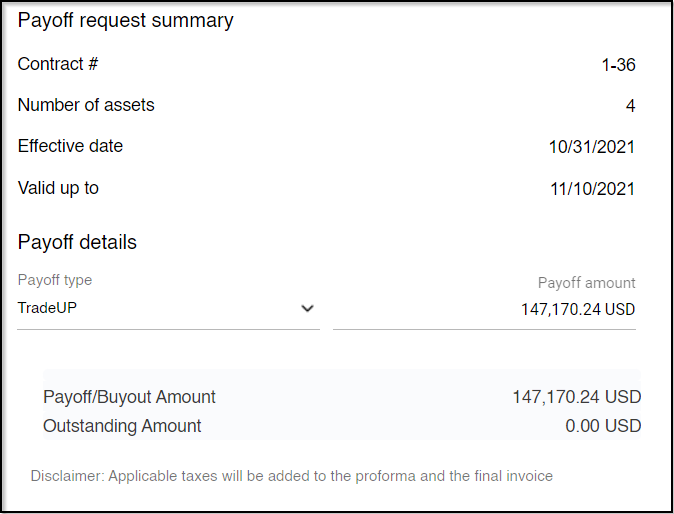
- Click
 to create the payoff quote.
Upon successfully creating a payoff quote, you’ll receive the following success message:
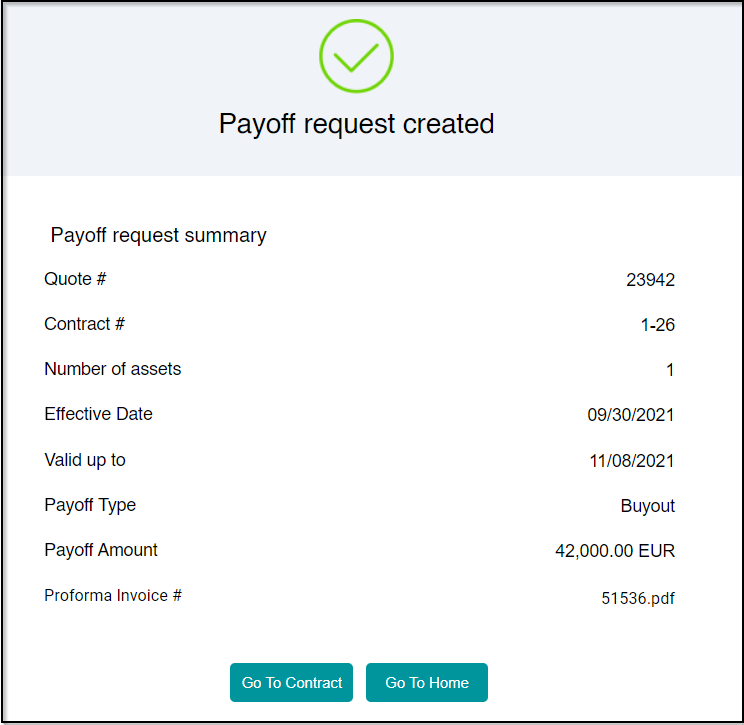
From here, now you can choose to go to contracts by clicking  or go to home page by clicking
  .
.
Following either of the above methods, once you reach the Payoff Request page, you can view all the selected contract’s details under the Contract Summary section.
- From the dropdown list, select the Payoff type.
- Click
 to select the Effective Date of payoff.
 - Select the Assets for which you want to create the payoff quote. You can also use the Select all option if you want to select all the available assets.
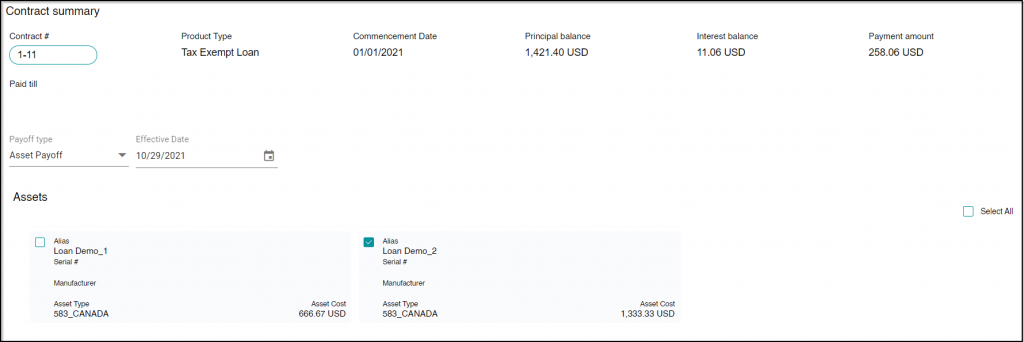
- With all details filled in, click
- Under Payoff Request Summary, review the payoff details entered.
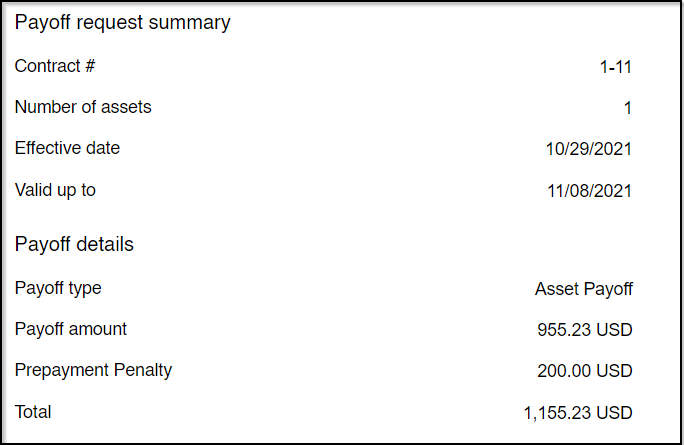
- Click to create the payoff quote.
Upon successfully creating a payoff quote, you’ll receive a success message.
From here, now you can choose to go to contracts by clicking or go to home page by clicking .
.