Account Settings
Who is this applicable to? Portal Administrator, Portal User, Super User
The Customer Portal allows you to manage all account-related activities from one single location. The account settings can be accessed from the top-right corner of the Customer Portal. Here, you can perform the following actions:
- Change account password
- Reset account password
- Edit profile details
Changing your account password
You can choose to change your password for security reasons or as a periodic activity. To do this, you first need to log into your account.
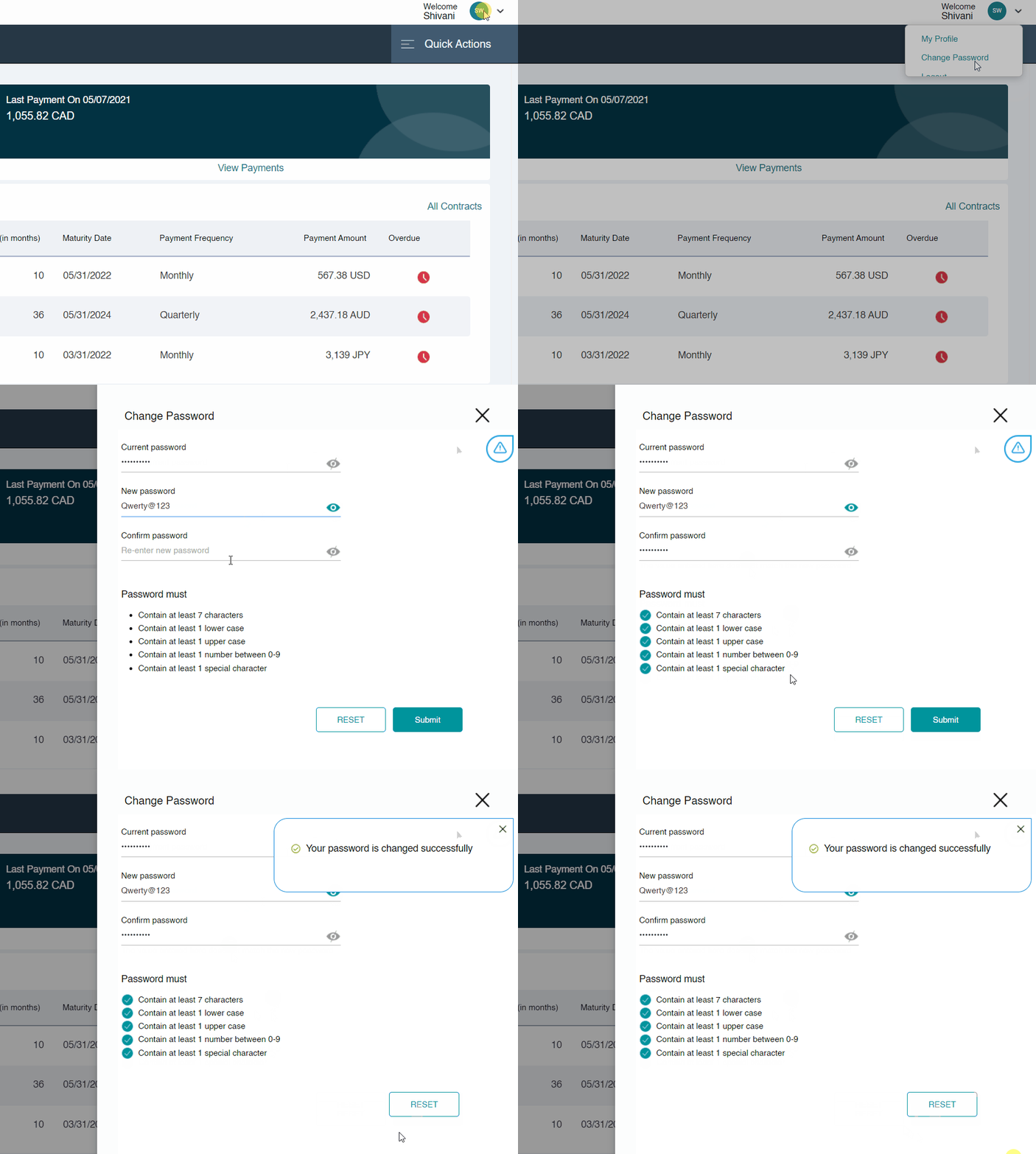
- Click on your profile photo from the top-right corner.
- Click Change Password. This opens the Change Password window from the right side of the screen.
- Enter your Current Password, followed by the newly desired one. Ensure that the new password meets the requirements mentioned on the screen.
- Re-enter the new password and click
 .
.
Viewing and editing profile details
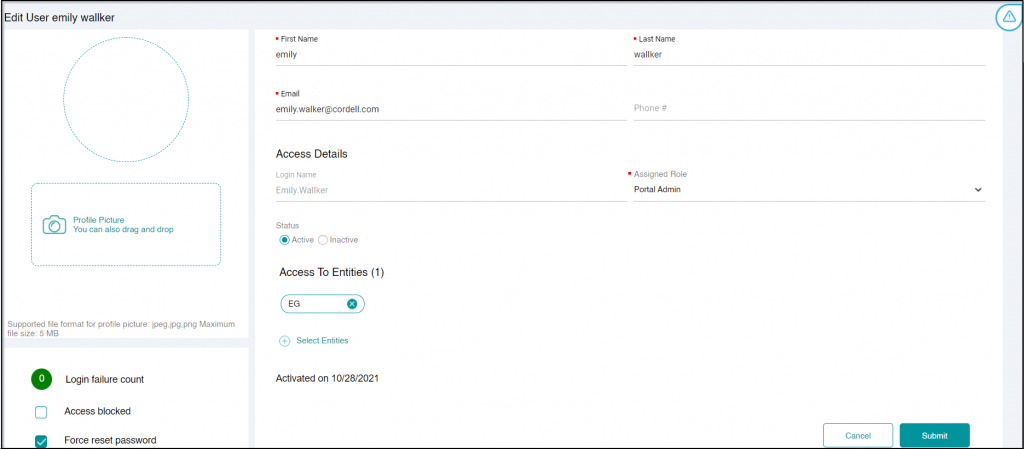
The My Profile section allows you to view all profile-related information such as name, email address, role, and so on. To access, click the  icon from the top-right corner and select My Profile.
Click to save any changes made to your profile.
NOTE
You cannot activate inactive user accounts.
Changing personal details
In the Personal Details section, edit the editable fields such as First name, Last name, and Phone number as required by you.
- Click
 on the left and select a photo to upload. You can optionally also choose to drag-and-drop the image onto the Profile Picture section.
Changing security questions
- From the dropdown list, select the security questions.
- Change the answers to the security questions selected by you.