Creating a User
Who is this applicable to? Security Administrator
Access to the Customer Portal is controlled by a valid username and password. For a user to be able to log in and access the Portal requires that they be added as Users with pre-defined roles assigned to them. The user accounts for the Customer Portal can be created by the Security Administrators and Portal Administrators. Note that a Security Administrator can create Portal Admin and Super User only.
TIP
Before proceeding to creating a user, make sure that you have the required role created for the user.
To create a user, perform the following steps:
- From the menu on the left, navigate to User Management > Users.
- In the Users tab that opens, click
Alternatively, you can also create a user by navigating to Create > User from the main menu on the left.
- Under Personal Details, enter the following information.
- Enter the First Name of the user, followed by the Last Name.
- Enter the Email id of the user, and optionally the Phone number.
- Under Access Details, enter the following information
- Enter the Login Name.
- From the dropdown list, select the Assigned Role.
- Under Customers, click
 to import customers.
 - In the Import Customers window that opens, select the customers that you want to assign to the user and click
 to import the selected customers.
- Once the customers are imported, the contracts associated with the selected customers are listed under Organization config. From the dropdown list, select the required Organization config.
- In the Import Customers window that opens, select the customers that you want to assign to the user and click
- Under the TFA Details, select the Authentication Factor Provider.

- With all details filled in, click
 at the bottom of the tab to create the user.
NOTE
In case of errors, you can choose to override the warnings by selecting the Override warnings checkbox at the bottom of the tab, and clicking Submit once again.
On successful creation of the user, you will receive a success message as follows:
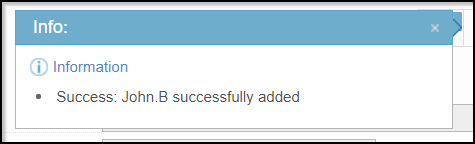
Upon creating a user, you’ll have to run the Notification job to intimate the users about the profile creation.
While scheduling the Notification job, select Job Task as Notification in the Job Step section.
TIP
It is recommended to schedule a recurring job to intimate users about profile creation.
To know more about jobs, click here.