We are here to help!
Resetting your account password
In case you forget your password and can’t sign in, you can choose to reset your password by answering the security questions defined by you during your first log in. To reset the password for your account, perform the following steps:
- On the Login page of the Customer Portal, click Forgot password?.
- Enter your Username and Registered Email ID and click Next. This opens the Forgot Password window.
- Answer the security questions defined by you during your first log in.
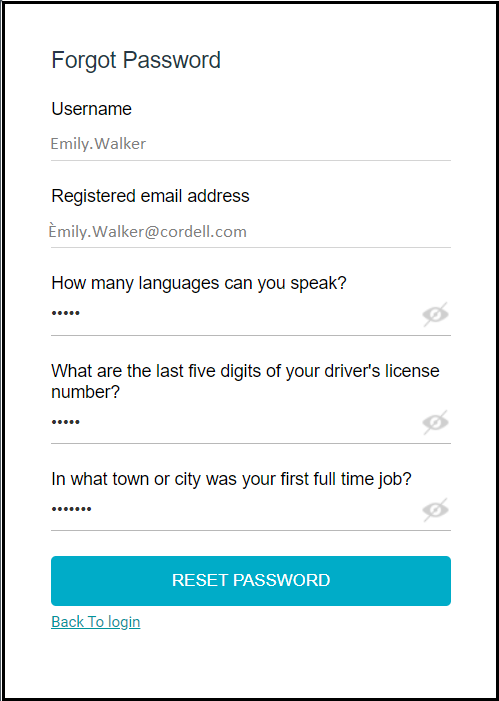
- Click RESET PASSWORD. You will receive the following success message:
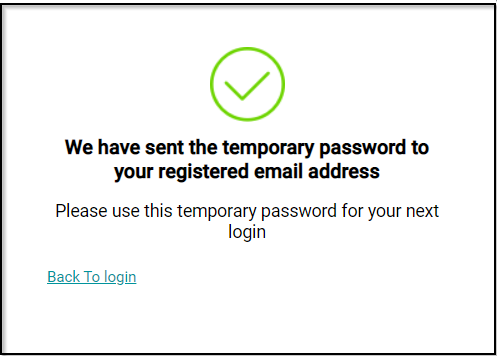
- Now, contact your security administrator to run the Notification job.
NOTE
If your security administrator schedules a recurring Notification job, then you will immediately receive an email notifying you about the temporary password.
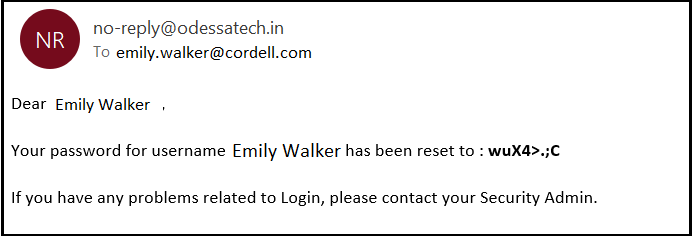
Upon running the Notification job successfully, you will receive the following email:
- Now, access the customer portal URL.
- Enter your Username and the Temporary password mentioned in the email.
- Select the Customer name from the dropdown followed by selecting I agree to the Terms and Conditions checkbox.
- Click Sign In. This opens the Reset Password window.
- Enter the password mentioned in the email as Temporary Password followed by a New Password. Ensure that the new password meets the requirements mentioned on the screen.
- To confirm the new password, re-enter the new password
- Click RESET PASSWORD.
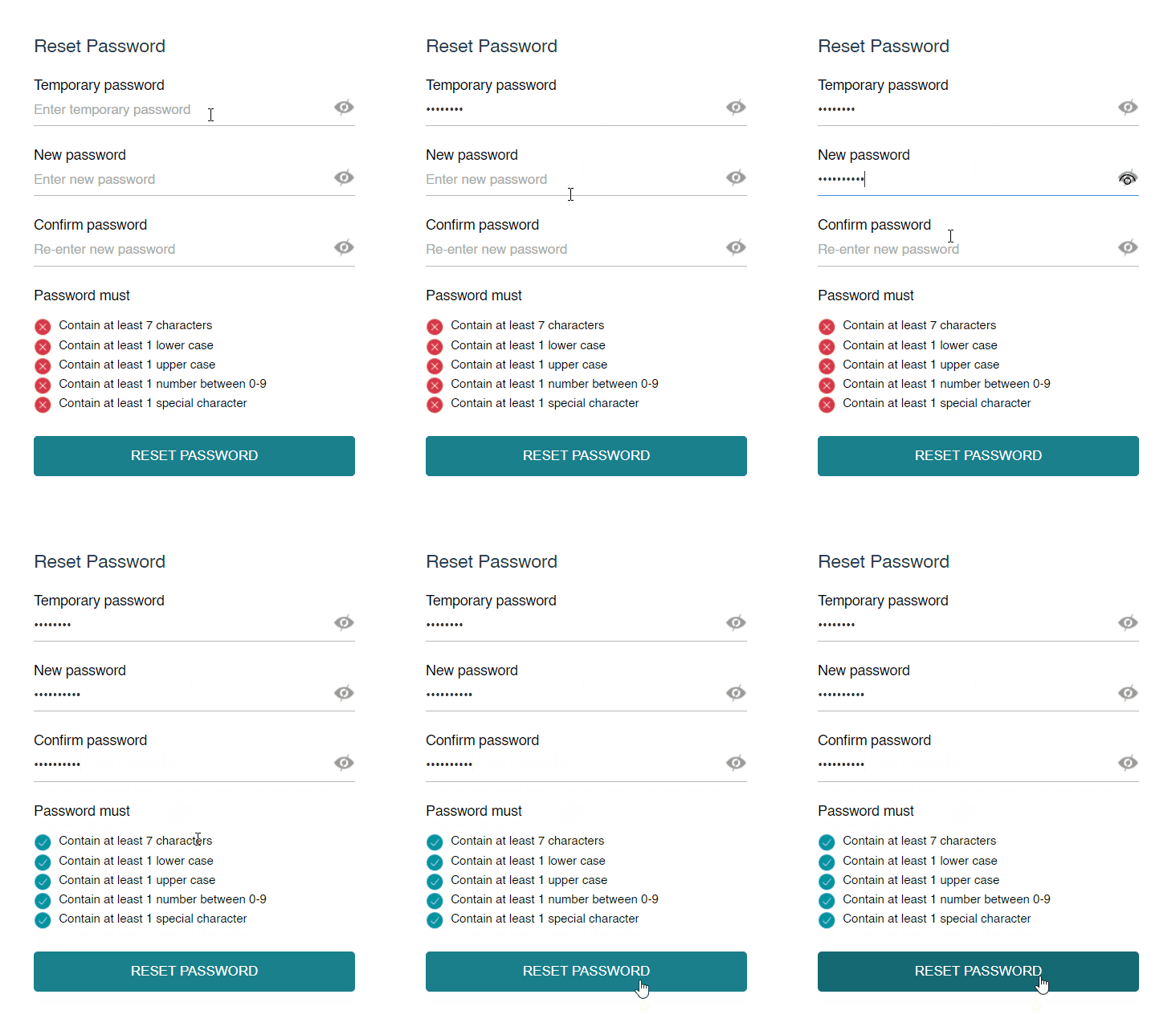
On resetting your password successfully, you will receive the following success message.
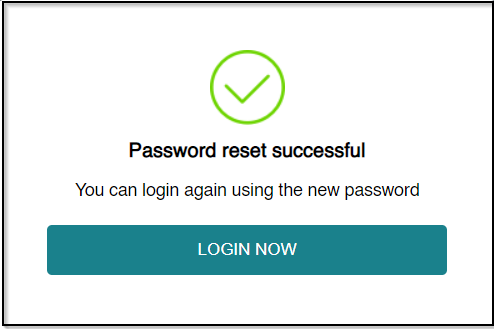
- Click LOGIN NOW, and enter your Username and the newly-set Password.
- Check I agree to the Terms & Conditions and click SIGN IN.