Editing a Job
Who is this applicable to? Security Administrator
All jobs that have been created in the system can be updated for changes or further usage. The rights to do so only reside with the Security Administrator. To make changes to an existing job, perform the following steps:
- Navigate to Business Admin > Jobs > Jobs from the menu pane on the left.
- In the Jobs tab, search for the required job. You can choose to either use the Basic or Advanced search options.
To know how to use Basic and Advanced search, click here.
The Odessa system allows you to perform two types of searches across the application – Basic and Advanced.

Basic search
You can choose to search for an entity based on basic search parameters such as Name, Id and so on. For this, select the search criteria from the dropdown and enter the search keyword.
Advanced Search
Clicking the Advanced option opens the Advanced Search window that allows you use a combination of search parameters to narrow down your search for a specific entity. Here, you use a variety of syntaxes and queries to perform specific searches.
-
Select the required job and click
 .
.
In the Job tab that opens, you can choose to perform any of the following tasks:
- Edit job details
- Unhold a job step
- Inactivate a job
- Resume a job
- Clone a job
- Run a job again
- Reactivate a job
- Cancel a job
Unholding a Job Step
You can choose to follow any one of the following depending on the number of job steps you want to unhold.
To unhold a single job step,
- Select the Job Step and click
 .
. - In the Job Step window, clear the Hold checkbox.
- Click
 at the bottom of the tab.
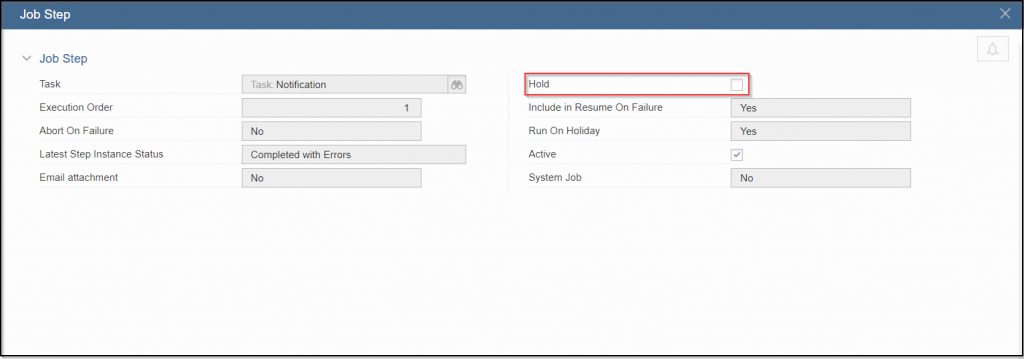
To unhold multiple job step,
- Select the Job Step and click .
- In the Job Step window, clear the Hold checkbox.
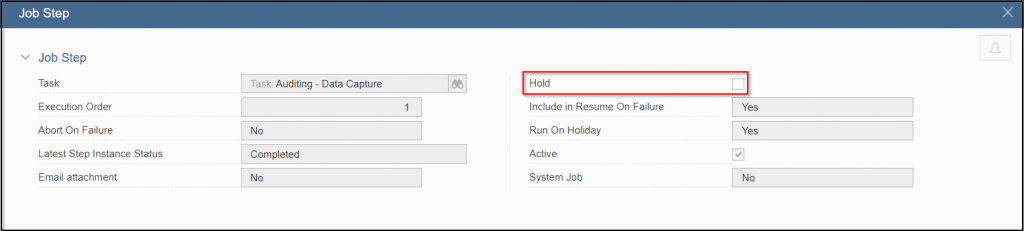
- To unhold the next job step, click

- Clear the Hold checkbox for all the required job steps.
- To return to the previous job, click

- Once all the job steps are edited, click at the bottom of the tab.
Inactivating a Job Step
You can choose to follow any one of the following according to the number of job steps you want to inactivate.
To inactivate a single job step,
- Select the Job Step and click .
- In the Job Step window, clear the Hold checkbox.
- Click at the bottom of the tab.
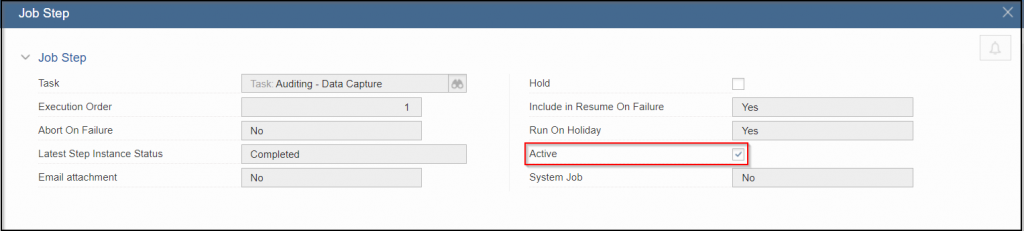
To unhold multiple job steps,
- Select the Job Step and click .
- In the Job Step window, clear the Hold checkbox.
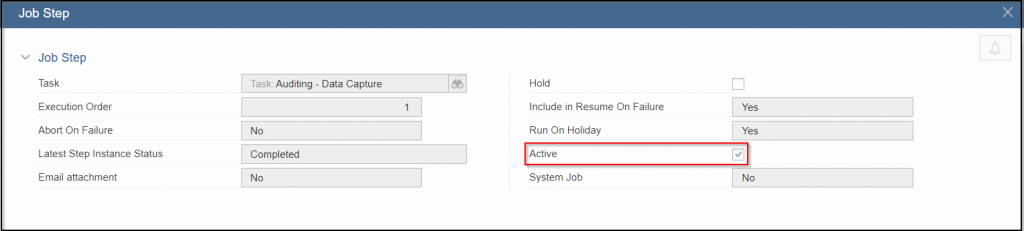
- To unhold the next job step, click .
- Clear the Hold checkbox for all the required job steps.
- To return to the previous job, click .
- Once all the job steps are edited, click at the bottom of the tab.
Inactivating a Job
NOTE
Once inactivated, you cannot activate the same job.
In the Job section, clear the Active checkbox to inactive the job.

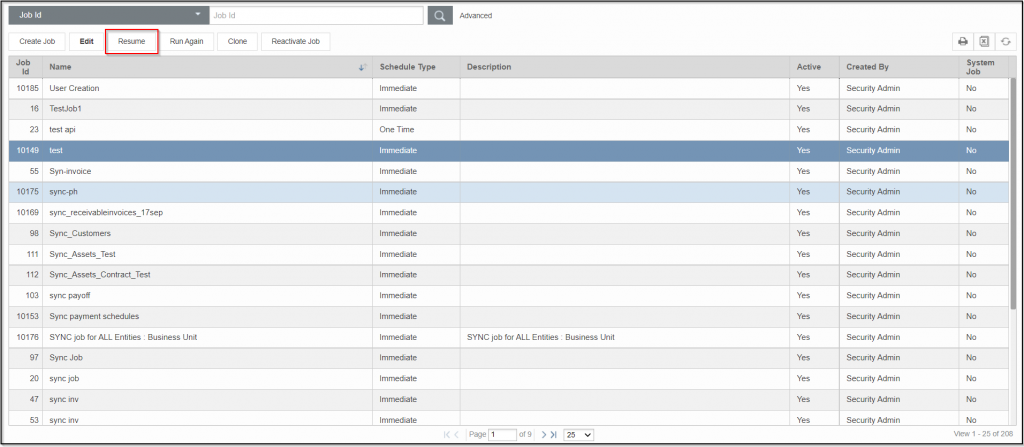
Resuming a Job
NOTE
You cannot resume inactivated jobs.
- On the Jobs tab, select the required job and click
 .
.
- Modify the editable fields as required by you.
- With all the details filled in, click
 at the bottom of the tab to resume the job.
NOTE
In case of errors, you can choose to override the warnings by selecting the Override warnings checkbox at the bottom of the tab, and clicking Resume once again.
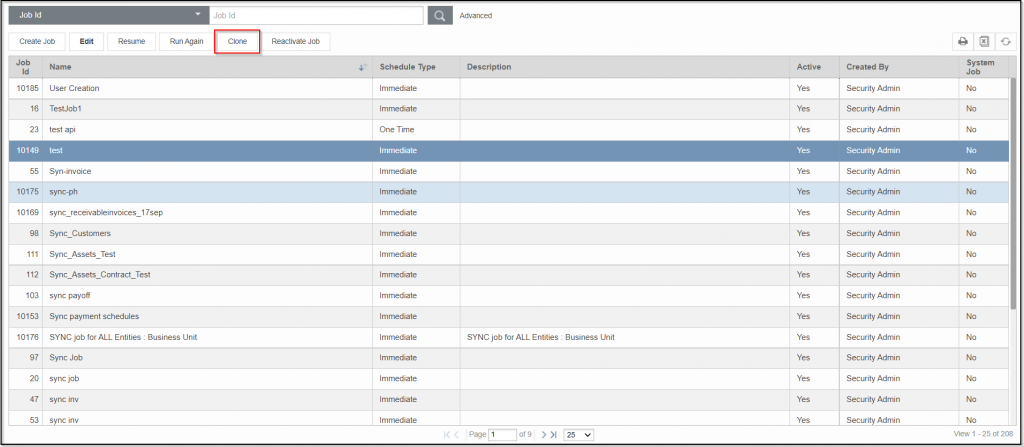
Cloning a Job
- On the Jobs tab, select the required job and click
 .
.
- Modify the editable fields as required by you.
- With all the details filled in, click
 at the bottom of the tab to clone the job.
NOTE
In case of errors, you can choose to override the warnings by selecting the Override warnings checkbox at the bottom of the tab, and clicking Submit once again.
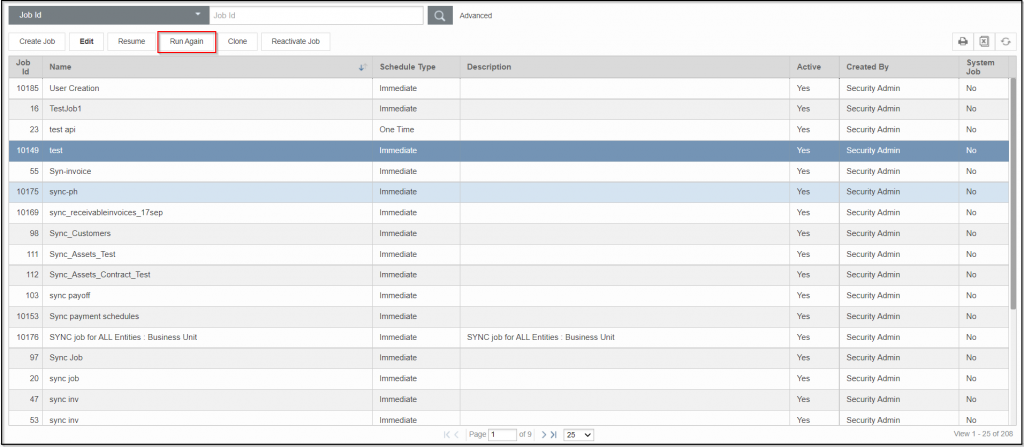
Running a Job again
NOTE
You cannot invoke Run Again on inactivated jobs.
- On the Jobs tab, select the required job and click
 .
.
- Modify the editable fields as required by you.
- Click
 at the bottom of the tab to run the job.
NOTE
In case of errors, you can choose to override the warnings by selecting the Override warnings checkbox at the bottom of the tab, and clicking Run Again once again.
Reactivating a Job
NOTE
You can reactivate one-time inactive jobs and recurring inactive jobs only.
- Select the required job and click


- Modify the editable fields as required by you.
- With all the details filled in, click at the bottom of the tab to clone the job.
NOTE
In case of errors, you can choose to override the warnings by selecting the Override warnings checkbox at the bottom of the tab, and clicking Submit once again.