Generating reports
Who is this applicable to? Portal Administrator, Portal User, Super User
The Customer Portal facilitates you to generate reports for assets and contracts. You can also save the generated report as a template. This template can be used in the future to generate reports or schedule report generation. You can generate a report either for Asset by Contract or for a Contract.
Generating Asset by Contract report
The Asset by Contract report lists the details of the assets for a particular contract. To generate a report for Asset by Contract, perform the following steps:
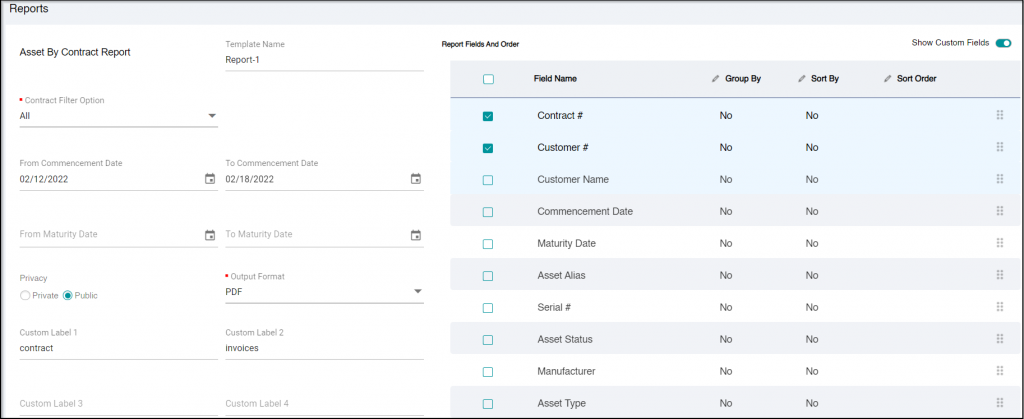
- Hover over Reports > Report List and click Asset By Contract Report.
- Optionally, enter the Template Name in case you wish to save the report template for future use.
TIP
You can generate a report without saving the template for it.
- In the Contract Filter Option field, choose if you wish to view the report for all available contracts (All), a specific contract (One), or a set of contracts (Range).
TIP
In case you choose to generate a report for a specific contract (One), then select the Sequence # for which you wish to generate the report. For a set of contracts (Range), select the From Sequence # followed by selecting To Sequence #.
- Optionally, you can further choose to enter information for the following filters:
Commencement date range: Click the  to select the From Commencement Date followed by To Commencement Date.
Maturity date range: Click the to select the From Commencement Date followed by To Commencement Date.
- Select the Report Privacy as required.
Click here to know more about Report Privacy.
- Private: Generated Report/Template would be visible only to the person who created it and portal admins.
- Public: Generated Report/Template would be visible to all the Customer Portal users.
- Select the Output Format of the report.
- Select Show Custom Fields button if you wish to add the custom fields to the report.
- The Report Fields and Orders section allows you to customize the report based on your preferences. Select the fields which should be included in the report and enter the custom field information.
-
You can additionally reorder the fields using the
 icon on the right to drag and reorder the fields.
To group similar groups together, click here
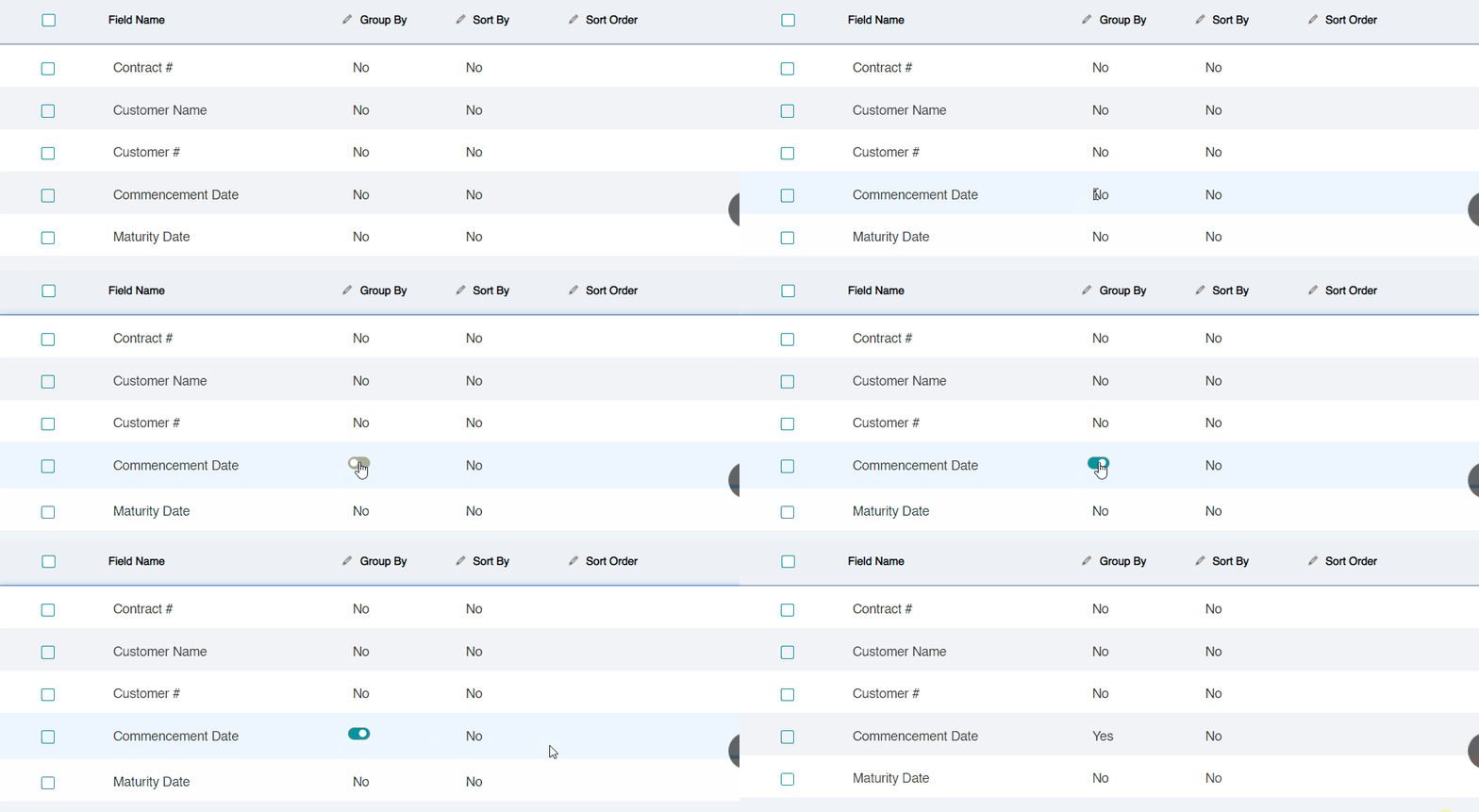
Using the Group By option, you can group similar field values together. For example, if you wish to group the data using the Commencement Date field, then all the contracts having the same commencement date will be grouped together. Perform the following steps to use Group By option.
- Select the Field Name using which you wish to group the data.
TIP
You can group the data in the report using one field only.
- Click No and select the toggle button to turn it on.
- Click anywhere outside the Group By column to see the change in value. The value of the Group By for the selected field would turn to Yes.
To sort the report in ascending or descending order, click here.
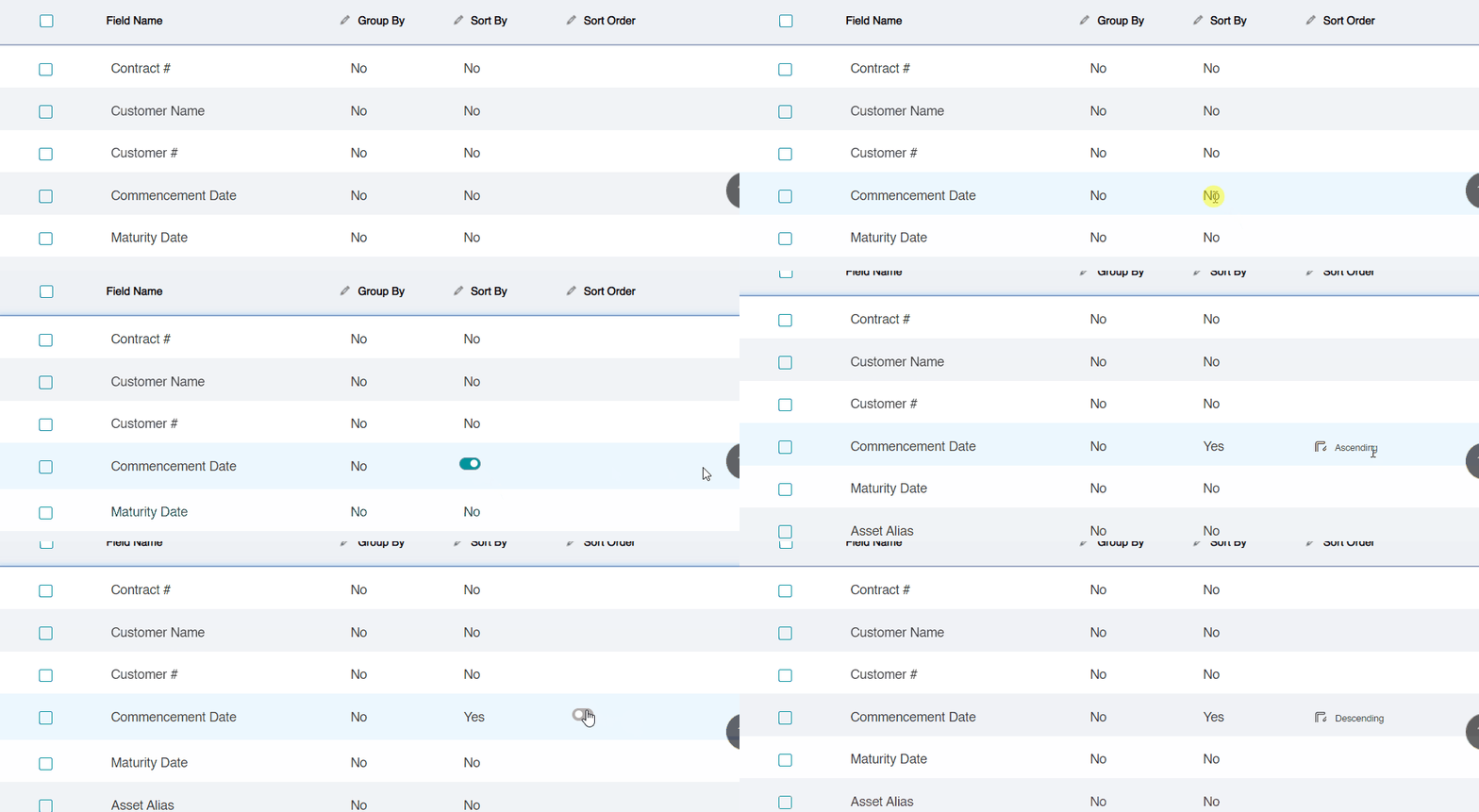
The Sort By option allows you to sort the report in ascending or descending order. Perform the following steps to use Sort By option.
TIP
You can sort the report using one field only.
- Click No corresponding to the field using which you wish to sort the report.
- Select the toggle button to turn it on.
- Click anywhere outside the Sort By column to see the change in value. The value of the Sort By for the selected field would turn to Yes.
- In case you also wish to order the report in desceding order, click Ascending in the Sort Order column and select the toggle button to turn it off. By default, the report would be ordered in ascending order.
TIP
If the toggle button is turned on, it indicates that the data would be ordered in ascending order. Alternatively, if the button is turned off, the data would then be ordered in descending order.
- Click anywhere outside the Sort By column to see the change in value. The value of the Sort By for the selected field would turn to Descending.
- Optionally, click
 in case you wish to save the report template for future use.
 - Click
 to generate the report.
 - Upon successfully generating the report, you would receive the following success message.
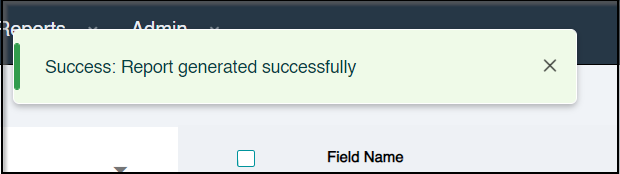
- Now you can download the generated report by clicking
 under Generated Report on the left hand-side.
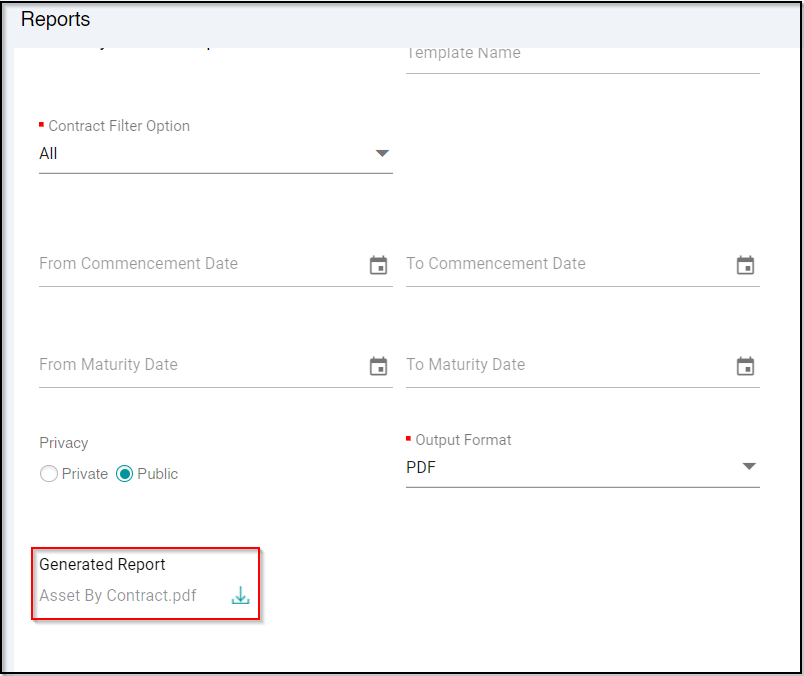
Generating Contract report
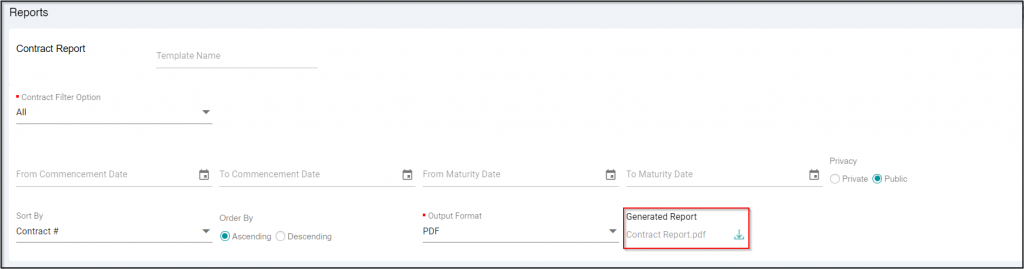
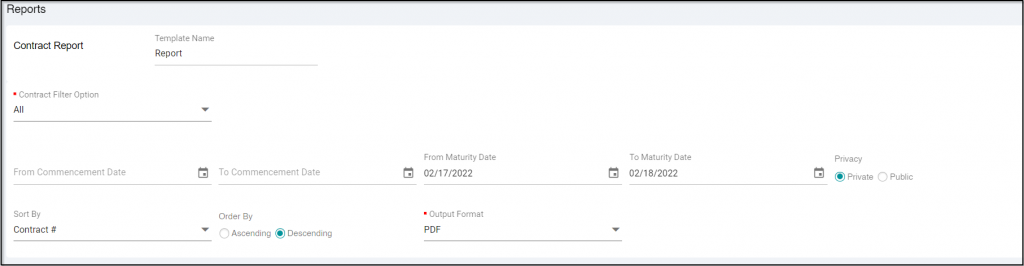
The Contract report lists the details of a particular contract. You can generate a contract report by performing the following steps:
- Hover over Reports > Report list and click Contract Report.
- Optionally, enter the Template Name in case you wish to save the report template.
TIP
You can generate a report without saving the template for it.
- In the Contract Filter Option field, choose if you wish to view the report for all available contracts (All), a specific contract (One), or a set of contracts (Range).
TIP
In case you choose to generate a report for a specific contract (One), then select the Sequence # for which you wish to generate the report.
For a set of contracts(Range), select the From Sequence # followed by selecting To Sequence #.
- Optionally, you can further choose to enter information for the following filters:
Commencement date range: Click the to select the From Commencement Date followed by To Commencement Date.
Maturity date range: Click the to select the From Commencement Date followed by To Commencement Date.
- Select the Report Privacy as required.
Click here to know more about Report Privacy.
- Private: Generated Report/Template would be visible only to the person who created it and portal admins.
- Public: Generated Report/Template would be visible to all the Customer Portal users.
- Optionally, you can select a parameter to sort the report followed by selecting the order of the report.
- Select the Output Format of the report.
- Optionally, click in case you wish to save the report template.
- Click to generate the report.
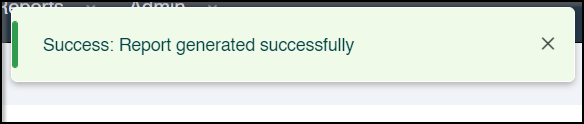
- Upon successfully generating the report, you would receive the following success message.
- Now you can download the generated report by clicking under Generated Report.