In addition to viewing and downloading invoices, you can use the View Invoices module to even make payments against pending invoices. Recording a payment against an invoice can be done in any one of the following ways:
- Individually, by clicking the PAY NOW button for the required invoice.
- In bulk, by selecting multiple invoices and clicking the PAY NOW button at the bottom.
- Entering the amount to be paid and using the Auto allocate to invoices option to automatically assign the amount to pending invoices based on the due date.
Pay Now option not visible?
Based on the organizational settings configured by your Lessor, you may not see the Pay Now button, in which case you can only use the Auto Allocate to Invoices option to proceed.
Using either of the above methods, you will proceed to the Review and Pay screen as follows:
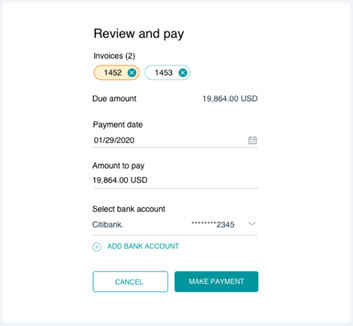
Under the Invoices header, you can view the selected invoices for which you are to make payment, along with the Due Amount.
- Select the Payment Date that should be noted for the payment along with the payable Amount.
- Next, select the applicable Bank Account for the payment. You can also choose the ADD BANK ACCOUNT option to create a new bank account and associate to this payment.
- With all details filled, click the MAKE PAYMENT button to save the payment details.
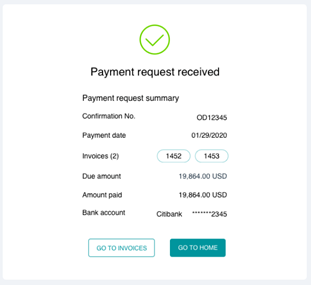
On successful completion, you will receive a Payment Request Received confirmation as follows: