Getting to know your Customer Portal
Once you log in to your Customer Portal account, you would be welcomed with the Home page. The Customer Portal Home page provides you with an overview of the Invoices, Payments, and Contracts.
The Customer Portal follows the Web Content Accessibility Guidelines (WCAG) to make content accessible for all users, including those with disabilities.
- From the Main Menu, you can navigate to the various modules of the Customer Portal. The following are the modules in the Customer Portal:
- Invoices & Payments: The Invoices & Payments module allows you to view the Invoice details, pay the pending Invoices and view the Payment History of the paid invoices.
- Contracts: Using the Contracts module, you can view Contract details, upload Documents to the Customer Portal, create Payoff Quotes, view the Payment Schedule, and raise Service Requests for your lessor.
- Assets: You can view the Asset details, and request location changes for your assets using the Assets module.
- Reports: The Reports module helps you to keep a track of your contract and asset-related information by generating reports for them. You can either generate a report manually or schedule report generation and get the generated report on your email daily, weekly, or monthly as required.
- Admin: The responsibility of creating and managing user accounts for the Customer Portal lies with the Portal Administrators. The Admin module will be visible to the Portal Admins only. Using the Admin module, the Portal Administrators can create users, deactivate and activate user accounts and edit user details.

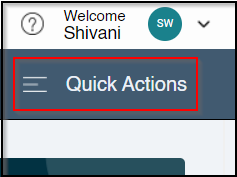
- Quick Actions: Using the Quick Actions menu in the right corner, you can navigate to the following menus directly:
- Set up Autopay
- Make Payment
- Request Payoff Quote
- Request Asset Location Change
- Service Requests
- Invoice card: The Invoice card gives you an overview of all the invoices available to you.
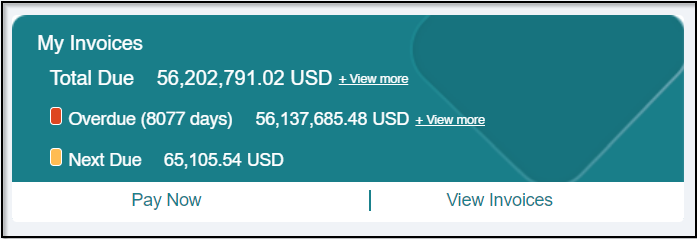
The Overdue amount represents the total outstanding amount to be paid with respect to the system date and logged-in private label configuration. The number in brackets represents the total number of days passed by an overdue contract. The Next Due amount is the total amount of the invoices whose due date is not passed. Total Due is the summation of the Overdue amount and the Next Due amount.
To pay the pending invoices, click  . You can also view the invoices available to you by clicking
  .
.
- Payments card: The Payments card displays the details of the latest payment and in-progress payment including payment date and amount made with the lessor.
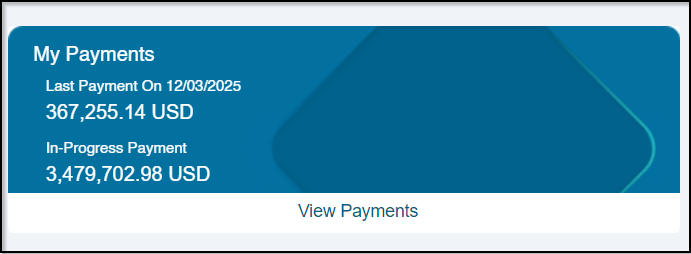
You can view the details of the payments made by clicking  available on the Payments card. . This navigates you to the Payment History dashboard.
- Contracts card: All the recent contracts with the lessor can be viewed under the Contracts card.
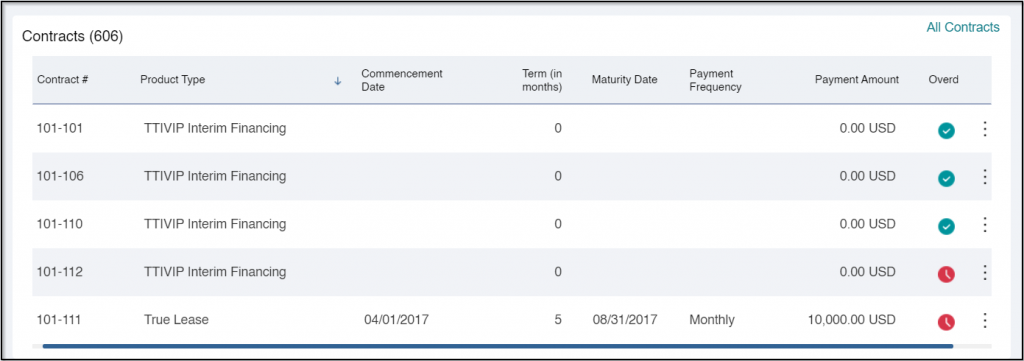
The overdue contracts are highlighted with a red icon in the Overdue column. To view all the contracts available with the lessor, click  on right. This navigates you to the Contracts dashboard.
- Credit Corner: The credit corner on the right displays the Total Credit, Available Credit, and Used Credit in the primary currency. You can choose to display the credit information in secondary currency using the dropdown.
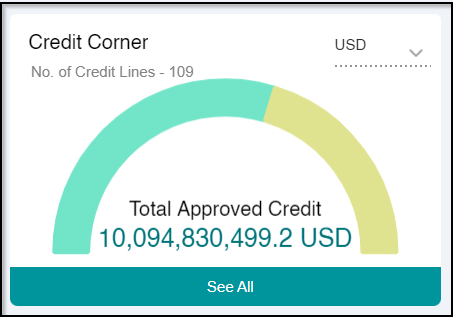
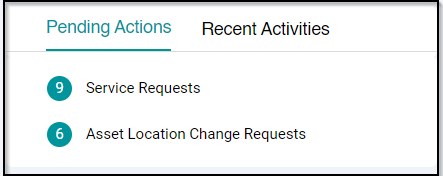
- Pending Actions and Recent Activities: It displays a list of recent activities performed for your customer account and pending items that need action from your lessor.
- Switching Customer after logging in: As a Superuser, you can access information of all the available customers. After logging in, you can use the Customer dropdown near the Odessa logo to select the required customer for servicing. You can view the details of only one customer at a time.
