Creating a Service Request
Who is this applicable to? Portal User, Portal Administrator, Super User
You to send the queries to your Lessor via the Service Request module in Customer Portal. You can raise a new service request using any of the following methods:
You can use the Quick Actions menu from the top right corner to navigate directly to Service Requests. Navigate to Quick Actions > Service Requests.
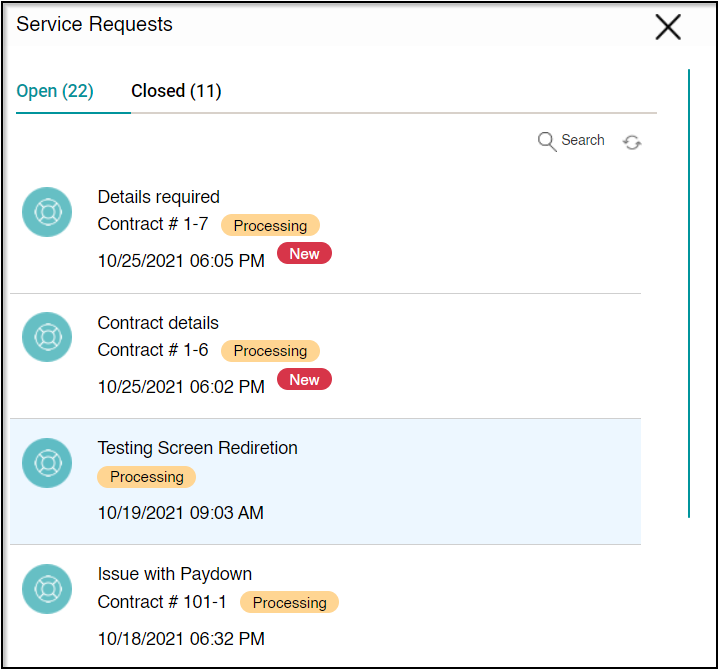
The Service Requests window that opens on the right displays a list of all Service Requests that have been created in the system, along with the current status.
You can use the main header menu to navigate to Service Requests. Navigate to Contracts > Service Requests.
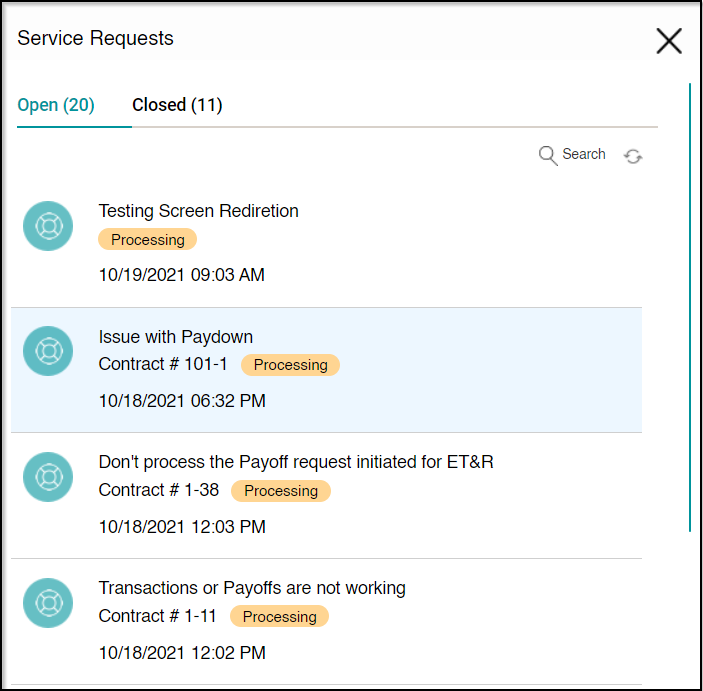
The Service Requests window that opens on the right displays a list of all Service Requests that have been created in the system, along with the current status.
- Scroll down the list of Service Request and click
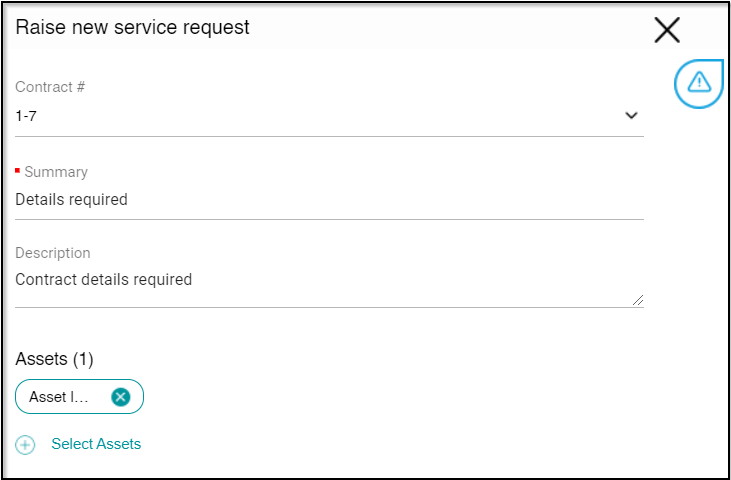
- Begin by entering a Summary for the request, followed by a brief Description.
- You can choose to associate a Contract # to the request from the dropdown list, or use the
 option to associate assets.
TIP
In case you have selected a Contract #, the SELECT ASSETS section will only list assets associated to that respective contract.
- With all the required details filled in, click
 to submit the Service Request.
Upon creating a request successfully, you’ll receive a success message as follows:

The request created will be displayed on the Service Requests window along with the status of the request.