Customer portal allows you to add new documents to the Customer Portal. Depending on your needs, there are two ways to add documents to the Customer Portal:
- Method 1: If you want to add the document to the Customer Portal.
- Method 2: If you want to add and associate the document to a contract.
Method 1
Method 2
Navigate to Contracts > Manage documents.
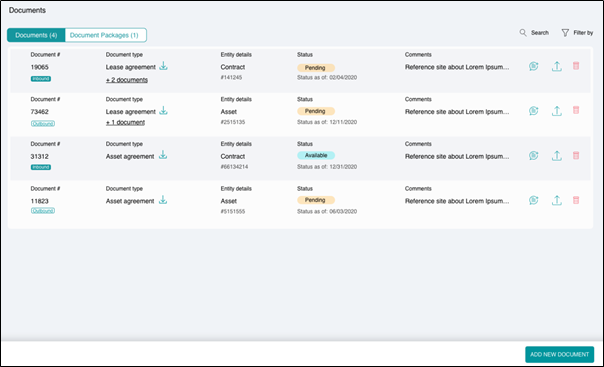
Searching and filtering
You can use the Search or Filter By option to look for specific documents.
Navigate to Contracts > View contracts > Click corresponding to a contract > Manage documents.
OR
Navigate to Contracts > View contracts > Click corresponding to a contract > View contract details > Manage documents.
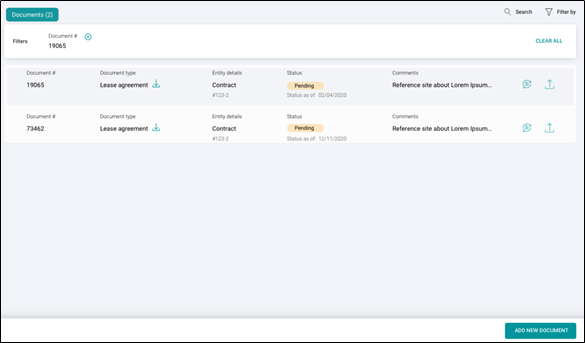
- Click ADD NEW DOCUMENT.
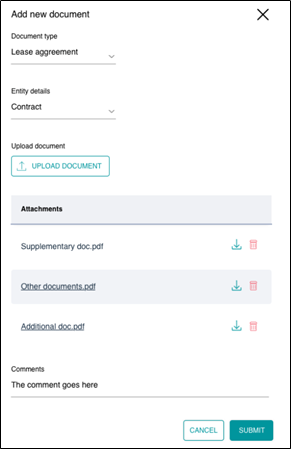
- Use the dropdown menu to select the Document type.
- Select the Entity details from the dropdown list.
- Click UPLOAD DOCUMENT and select file(s) to upload.
- You can add the comments, if any.
- Click SUBMIT button to add the document.
Downloading and deleting
You can download the already added documents by clicking corresponding to the document name and delete a wrongly uploaded file by clicking
.