We are here to help!
Two-Factor Authentication
You need to enter the Two-Factor Authentication(TFA) code every time you log in to the Customer Portal. You can use either Email based or Authenticator app-based authentication. The TFA options are configured by your administrator.
Two-Factor Authentication via Email
- When you log in to the portal, the system will automatically send an email to the registered email account.
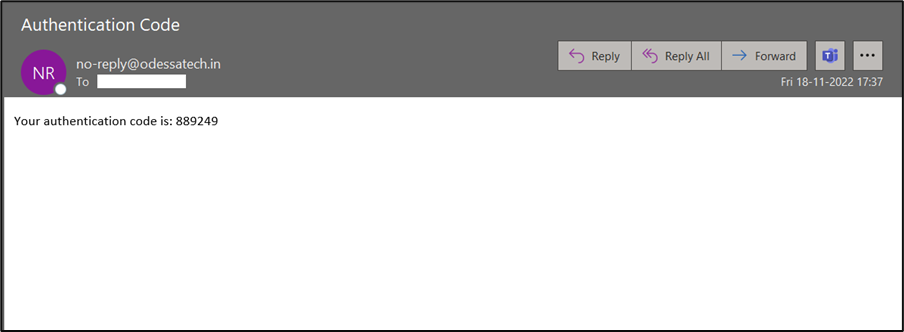
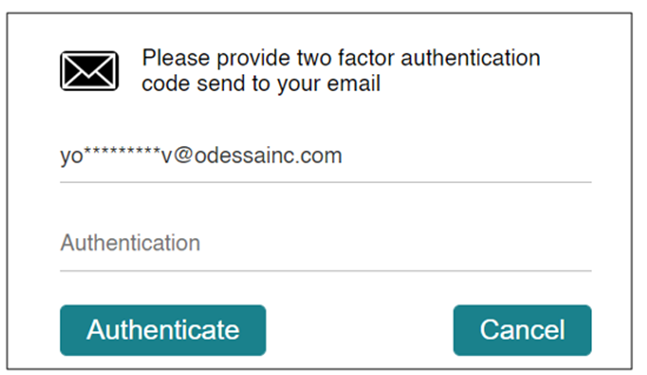
- On the portal, enter the TFA token from the email to access the portal. This will appear for each login attempt. The authentication code validity period is 10 minutes by default.
- Click Authenticate to continue.
Two-Factor Authentication via App
- When you log in to the portal, the system displays the QR Barcode to upload and register the app.
TIP
We recommend you use Google Authenticator.
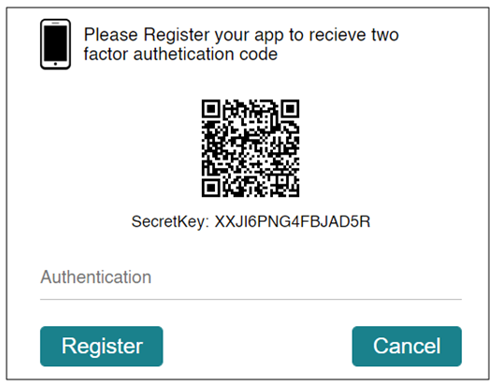
- In the authenticator app, click Scan a QR code or Enter a setup Key through the device to register.
- If Enter a Setup Key is selected, in the google authenticator app, provide the following information.
- Account Name – User entered Account Name
- Setup Key – Security Key as shown below the QR Code
- Type of Key – Time-Based
- Once the QR Code is scanned or Secret Key (along with the required information) is entered in the google authenticator, the app generates the authentication code.
- Enter the authentication code in the Customer Portal screen.
- Click Register to continue.
- After successful registration, the App generates the TFA code every 30 seconds. This will appear for each login attempt.
- Enter the TFA code on the portal and click Verify to continue.