Viewing and Editing a Role
Who is this applicable to? Security Administrator
The Customer Portal allows the Security Administrator to view and manage all roles that have been created in the system. You can view the roles by navigating to User Management > Users > Roles from the main menu on the left.
In the Roles tab that opens, you can search for the required role. You can also choose to use the Basic or Advanced search options provided to you.
To know how to use Basic and Advanced search, click here.
The Odessa system allows you to perform two types of searches across the application – Basic and Advanced.

Basic search
You can choose to search for an entity based on basic search parameters such as Name, Id and so on. For this, select the search criteria from the dropdown and enter the search keyword.
Advanced Search
Clicking the Advanced option opens the Advanced Search window that allows you use a combination of search parameters to narrow down your search for a specific entity. Here, you use a variety of syntaxes and queries to perform specific searches.
Select the required role and click  This opens the Role tab as shown below.
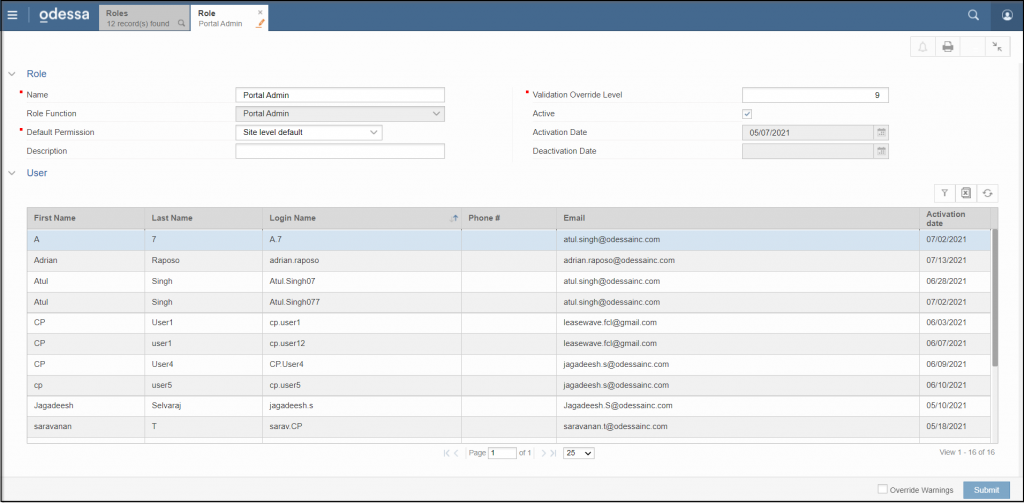
Here, you can perform the following actions:
- Edit the role details
- Change default permissions for the role
- Inactivate a role
Click  on the bottom to save any changes made to the role.
Editing the role details
The Role section allows you to edit the Role Name, Description and Validation Override level of the role as required by you.
Changing default permissions for the role
In case you need to change the Default Permission of the role, you can do so by selecting the appropriate permission from the dropdown.
Inactivating a role
NOTE
- On inactivating a role, the user accounts associated to it will also get inactivated.
- Once you inactivate a role, you cannot activate the same role again.
In the Role section, you can choose to inactivate a role by clearing the Active checkbox.

Viewing users associated with the role
In the User section, you can view the users associated with role.
