Setting up autopay
Who is this applicable to? Portal Administrator, Portal User, Super User
The Customer Portal facilitates you to schedule recurring payments for your contracts, create multiple recurring payment accounts, and define the payment limits for your bank accounts.
Follow these steps to set up autopay for your payments.
On the home page, click  . This opens the Set up Autopay tab.
Use the Quick Actions menu from the top-right corner to navigate directly to setting up autopay.
Click Quick Actions > Set up Autopay. This opens the Set up Autopay tab.
- Hover over Invoices & Payments > Manage Autopay. This opens the Autopay setup request tab.
- Click
 .
.
- Click
 corresponding to the bank account for which you want to set up the autopay.
In case your bank account is not listed here, click here to add a bank account,
Click  . This opens the Bank Accounts tab on right.
Now enter the Account Name, followed by the Account Number and Routing #.
Select the Account Type and Currency from the list provided.
Click  to save the account details.
- Click
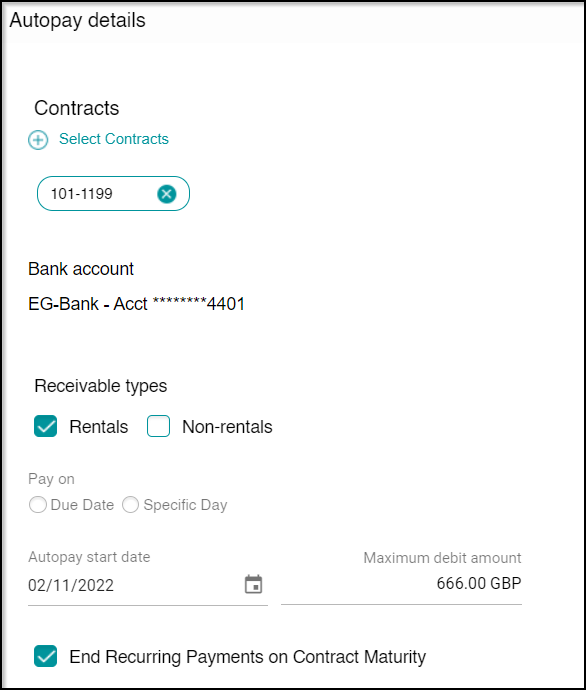
 , select the required contracts and click
  .
.
TIP
The contracts having currency the same as the bank account will be displayed here. If you choose to select the contracts, then autopay will be enabled for those specific contracts. If you do not select any contract, then autopay will be enabled for all the available contracts.
- The receivable types have been divided into two categories – Rentals and Non-rentals. Select the Receivable types as required by you. You can also choose to select both the receivable types.
- Select if you wish to record your payment on Due Date or on any other Specific Day of the month.
- In case you wish to record your payment on a specific day, then additionally select the Day of the month.
- Click
 to change the Autopay start date.
 - In case you have selected contracts for enabling autopay and wish to end recurring payments on contract maturity, select the End Recurring Payments on Contract Maturity.
- Click to change the Autopay end date if applicable.
- Enter the maximum amount to be debited. The Maximum Debit Amount is the amount that can be withdrawn from a bank account through a single ACH transaction.
TIP
A notification will be sent to you in case the invoice amount exceeds the Payment Threshold.
- Click
 to submit the autopay request.
Upon successfully creating the autopay request, you would receive a success message.