Making Payments
Who is this applicable to? Portal Administrator, Portal User, Super User
You can use the Customer Portal to record payments against pending invoices or contracts. You can follow any one of the following methods:
You can use the Quick Actions menu from the top-right corner to navigate directly to making Payments.
Click Quick Actions > Make Payment. This opens the Make Payment window.
From the main menu header, navigate to Invoices & Payments > Make Payment. This opens the Make Payment window.
- From the main menu header, navigate to Contracts > Contracts. This opens the Contracts tab.
- Click
 corresponding to the contract for which you want to record your payment and click Contract Details.
- Click
 . This opens the Make Payment window.
NOTE
The fields for Payment Currency and Contracts Amount would be auto-filled based on the Contract # details.
- Now, follow the steps from Step 4 from the Contracts tab.
- From the main menu header, navigate to Invoices & Payments > Invoices. This opens the Invoices tab.
- Click
 corresponding to the Invoice # for which you want to record the payment.
Users can choose to pay multiple invoices at once. To pay more than one invoices,
- Navigate to Invoices & Payments > Invoices. This opens the Invoices tab.
- Select the required invoices and then scroll down to click
 . You’ll be directed to Make Payments screen.
NOTE
The fields for Payment Currency, Invoices and Overdue Amount would be auto-filled based on the Invoice # details.
- Now follow the steps from Step 4 from the Invoices tab.
Based on your requirement, you can choose to record payments against an Invoice or towards a Contract:
- To make payment towards a contract, begin by choosing Contracts under the Payments For field.
- Select the applicable Payment Currency.
- Next, click
 and select the contracts for which you wish to make the payment.
NOTE
The Import Contracts window displays only the contracts that are based on the currency selected by you.
- Optionally, you can select the Payment Date by clicking
 .
. - Enter the payable Amount.
- Select the applicable Bank Account for the payment. You can also choose the
 option to create a new bank account and associate to this payment.
To know how to add a bank account, click here
Click This opens Bank Accounts tab on right.
In the Add New Bank Account section, enter the Account Name, followed by the Account Number and Routing.
From the dropdown list, select the Account Type.
To save the account for future payments, select the Save account for future payments checkbox.
Click  to save the account details.
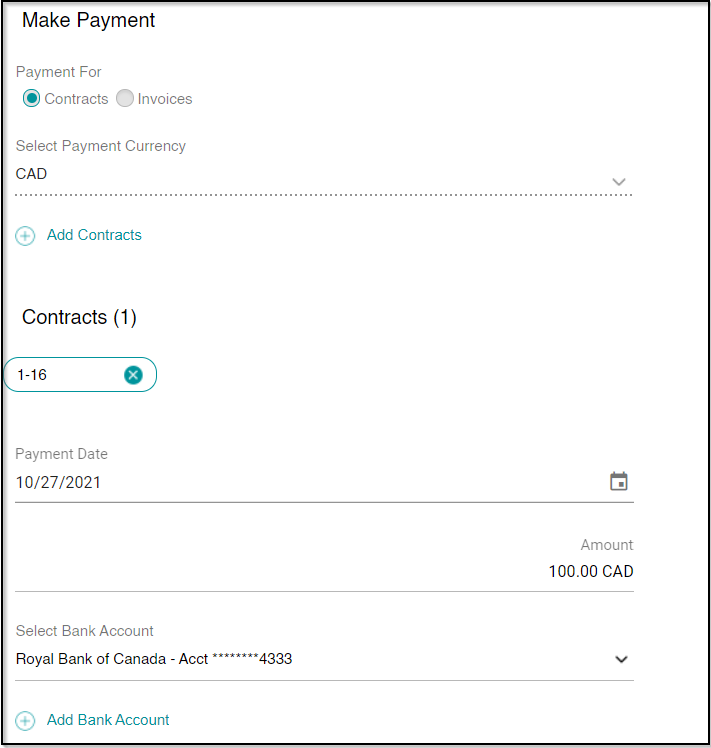
- With all the details filled in, click
 to make payment.
Upon successfully receiving the payment request, you would receive the following confirmation:
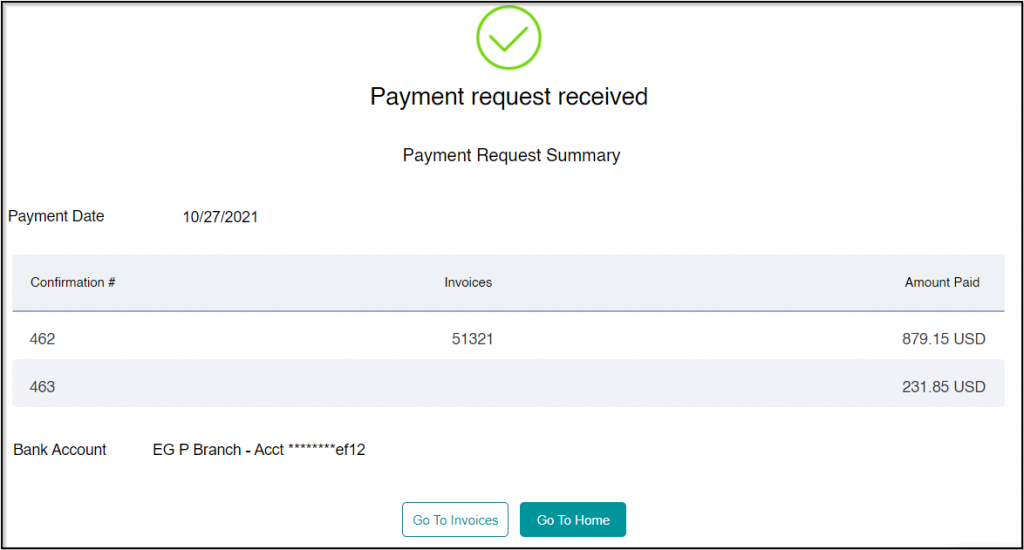
From here, you can choose to go to all invoices by clicking  or go to the home page by clicking
  .
.
- To make payment towards an invoice, begin by choosing Invoices under the Payments For field.
- Click
 and select the required invoices for which you make the payment.
NOTE
The Import Invoices window will display only those invoices that are based on the currency selected by you.
- Click to select the Payment Date that should be noted for the payment, followed by the payable Amount.
- Select the applicable Bank Account for the payment. You can also choose the option to create a new bank account and associate to this payment.
To add a bank account, click here
Click This opens Bank Accounts tab on right.
In the Add New Bank Account section, enter the Account Name, followed by the Account Number and Routing.
From the dropdown list, select the Account Type.
To save the account for future payments, select the Save account for future payments checkbox.
Click to save the account details.
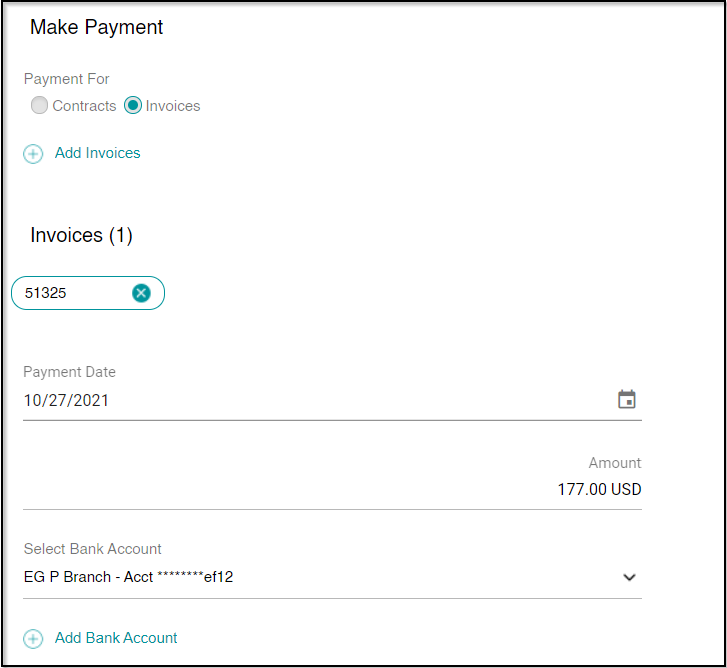
- With all the details filled in, click to save the details
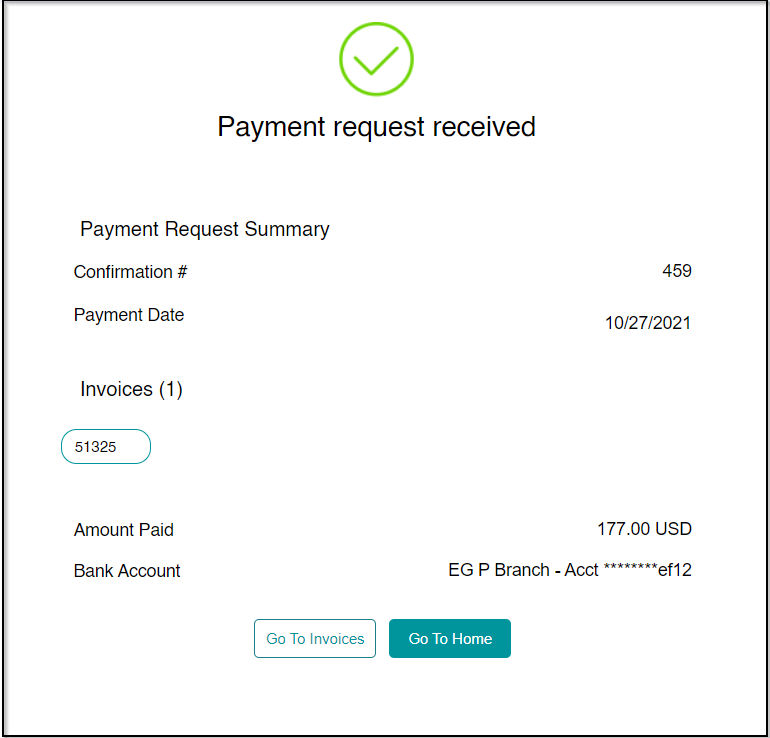
Upon successfully receiving the payment request, you would receive the following confirmation:
Making payment for all the overdue invoices
You can also record payment against all the available invoices all at once using the Customer Portal. To do so, perform the following steps:
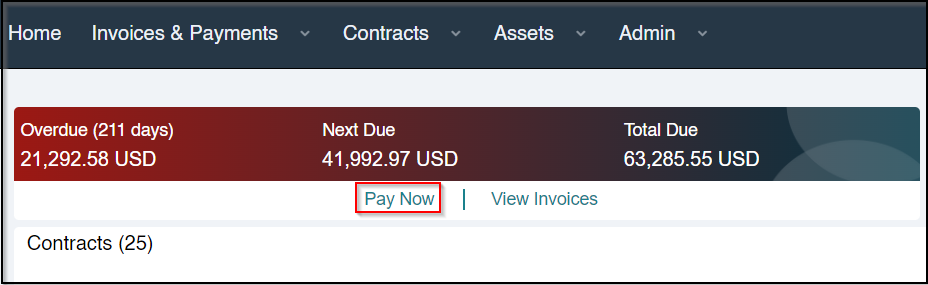
- From the Home page, click . You will be redirected to the Pay Now screen.
- In case you have contracts in multiple currencies, select the Payment Currency from the dropdown list.
- Optionally, can select the Bank Account from the dropdown list or also choose to add a new bank account by clicking . Click here to know how to add new bank account.
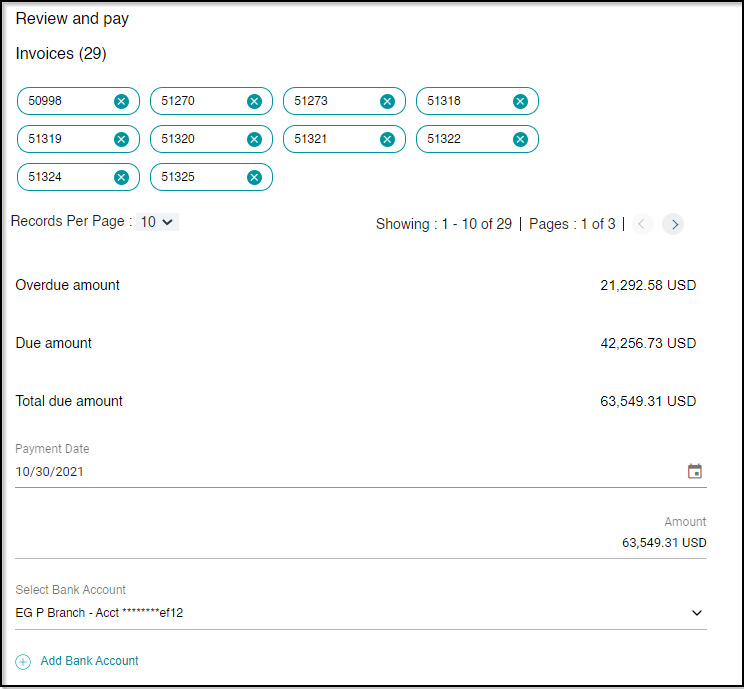
- With all the details filled in, click to make payment.
Upon successfully receiving the payment request, you would receive the following confirmation:
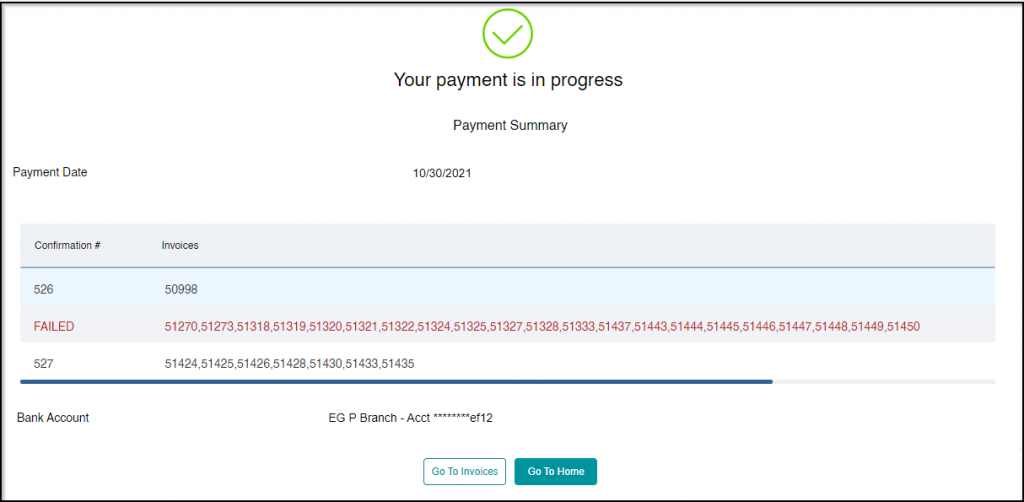
From here, you can choose to go to all invoices by clicking or go to the home page by clicking .
Auto-allocating payment to invoices
Using the Customer Portal, you can also choose to auto-allocate a certain amount and pay it to your lessor. The system will automatically import the oldest overdue outstanding invoices and clear them.
To auto-allocate payment to the invoices, perform the following steps:
- Navigate to Invoices & Payments > Invoices. This opens the Invoices tab.
- Click
 .
. - Enter the amount that you wish to pay.
- From the drop dropdown list, select the currency.
- Click
 . You’ll be redirected to the Make Payment screen.

- Optionally, can select the Bank Account from the dropdown list or also choose to add a new bank account by clicking . Click here to know how to add new bank account.
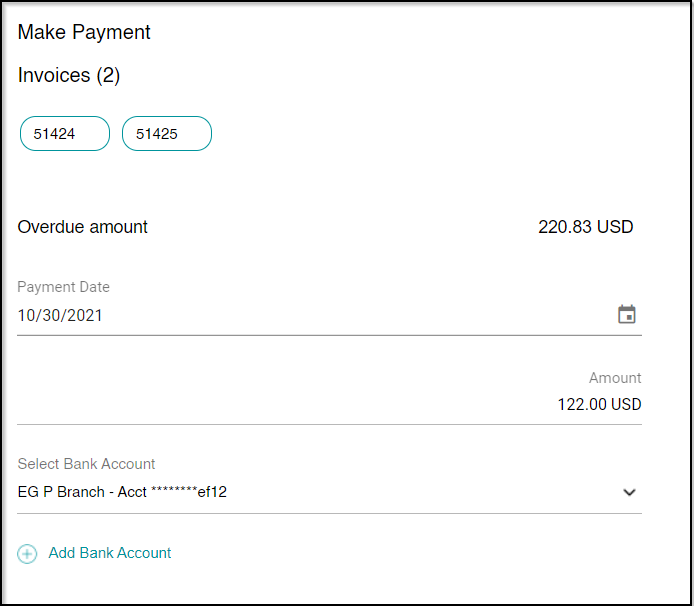
- With all the details filled in, click to make payment.
Upon successfully receiving the payment request, you would receive the following confirmation:
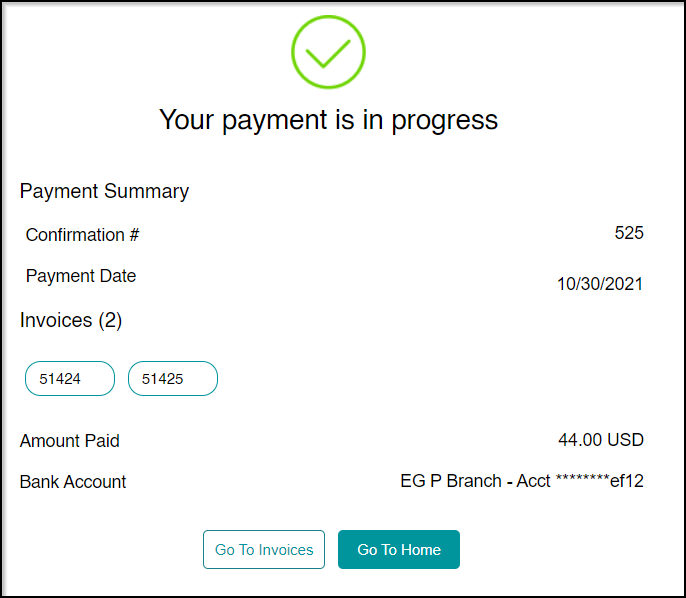
From here, you can choose to go to all invoices by clicking or go to the home page by clicking .
.