We are here to help!
Getting started with your account
Who is this applicable to? Portal User, Portal Admin, Super User
On successful creation of your profile, you would receive an email notification that would look something like this:
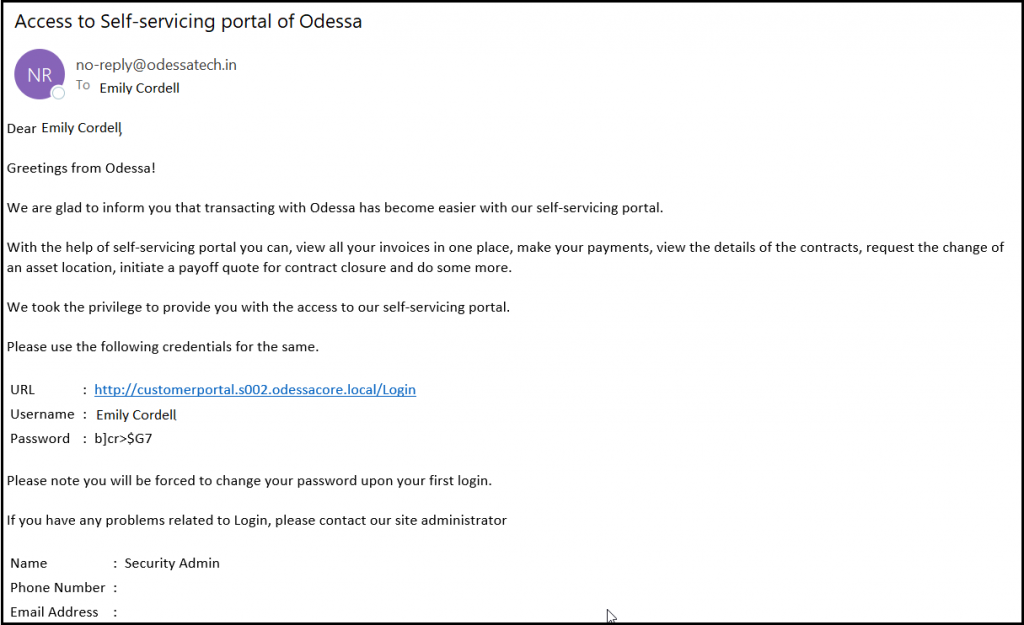
- To access the customer portal, click the URL given in the email. Alternatively, you can also paste the given URL in the browser.
TIP
The Customer Portal can be accessed across Google Chrome, Microsoft Edge, Mozilla, Firefox, and Safari.
- To log in for the first time, use the Login Credentials mentioned in the email.
- Check I agree to the Terms & Conditions and click Sign In. Since this is your first login, you will be redirected to set a new password for your account.
- Enter the password mentioned in the email as Temporary Password followed by a New Password. Ensure that the password meets the requirements mentioned on the screen.
- To confirm the new password, re-enter the new password and click Next.
- From the dropdown list, select the appropriate Security Questions and enter their respective answer.
- With all the security questions answered, click RESET PASSWORD. On setting your new password successfully, you will receive the following success message:
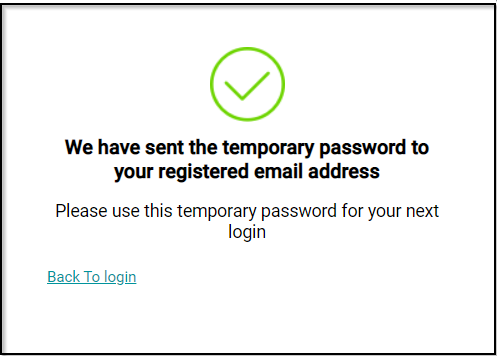
With the new password now set, you can log into the Customer Portal.
- Click LOGIN NOW and enter your username and the newly-set password.
- Check I agree to the Terms & Conditions and click SIGN IN.