Creating Email Templates
The Security Administrator role allows you to to create and manage Email templates. These Email templates are used when an email is to be sent from the application, that is triggered from a job. These templates contain the mail subject, body and so on to make it simpler for the user and the system to draft the email.
To create an Email Template, perform the following steps:
- From the main menu on the left, navigate to Business Admin > Master Configuration > Email Templates.
- Click
 .
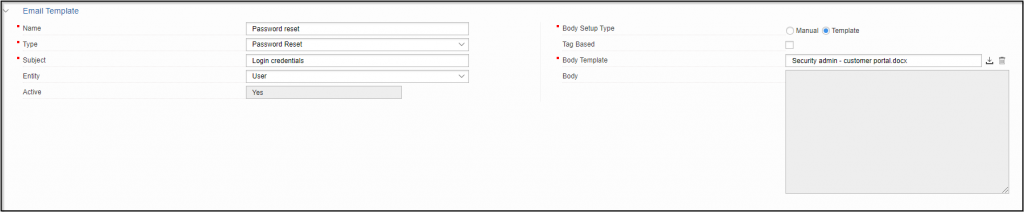
. - Enter the Name of the email template, followed by selecting the Type of email template from the dropdown list.
- Enter the Subject of the email.
- From the dropdown list, select the Entity for the email template.
- Now, choose the Body Setup Type.
Depending on the selection of the Body Setup Type, choose any one of the following tabs:
Enter the text for the email body into the Body Field.

If the email template is a tag-based template, select the Tag checkbox.
Select a file to upload as Body Template.
- Click
 on the bottom right to create the email template.
NOTE
In case of errors, you can choose to override the warnings by selecting the Override warnings checkbox at the bottom of the tab, and clicking Submit once again.